WiFi marketing workflows: a guide for pubs, cafes and hotels

Most venues that run guest WiFi marketing send one welcome email and stop. The second message, the one that depends on whether the guest came back or carries a particular tag, never goes out because somebody would have to remember to send it. A workflow builder sends it without anyone remembering.
This guide covers what WiFi marketing automation workflows are, what can start one, how a journey waits and branches, and what a pub, cafe or hotel would switch on first. It is written around CaptiFi Workflows, the workflow builder in the my.captifi.io dashboard.
An automation sends one email, a workflow runs a journey
In CaptiFi, an automation is a single trigger tied to a message: a guest connects and a welcome email goes out, or a guest has been away 60 days and a come-back email goes out, with up to five follow-ups behind it. It is quick to set up and covers the common cases.
A workflow is a journey drawn on a canvas. One start begins it, and the steps after it can wait for a fixed time or for the guest to do something, split on what you know about the guest, and act in more ways than an email: a tag, reward points, a team notification, a webhook, or a new WiFi name for the length of an event. Each step reports how many guests went through it.
The test is whether the message you want depends on anything that happens after the first one. A thank you email after every visit is an automation; a thank you that waits two hours and sends a second email only to guests tagged "tasting-menu" is a workflow. The set-and-forget guide covers the automations most venues start with; this guide covers the guest journey automation that comes after.
The things that can start a workflow
Every workflow has exactly one start, and CaptiFi offers thirty. Eight are moments in a guest's relationship with your venue; the rest belong to the venue, the calendar, another system, or a product on your plan.
| Start | What it is, and its settings |
|---|---|
| Guest connects | A sign-in, on the first visit or every visit, with an option to enrol opted-in guests alone |
| Guest returns | A known guest comes back; you choose which visit counts, from the second to the hundredth |
| Guest has not visited for a while | Days without a sign-in, up to a year, checked once a day |
| Birthday | From the day itself to 30 days before |
| Tag added or removed; Marketing consent changes; Guest enters a segment; Started by staff | A change to the guest's record, or your team starting the journey for one guest |
| Schedule | Hourly, daily, weekly or monthly on the venue's clock, for a segment or every subscribed guest, up to 5,000 per occurrence |
| Campaign opened or clicked; Review rating submitted | A campaign open or click, or a 1 to 5 rating on your review request page |
| Access point offline or back | For a set number of minutes; a venue start with no guest |
| Incoming webhook | Another system posts to a signed address; needs the CaptiFi API on your plan |
| Calendar event starts or ends; Bank holiday starts | A Planner event at the venue, or a UK bank holiday up to seven days away |
| Ticket and reward moments | Seven of each, with Events or Rewards on your plan |
A guest is never enrolled in the same journey twice at once, and every workflow carries a re-entry rule of never, always, or after 1 to 999 days. The venue starts name a venue and no guest, so the steps after them act on the venue itself. Three further starts, Fixture starts, Fixture ends and Weather forecast, show as not available and cannot be published until CaptiFi connects a fixtures or forecast provider.
Wait, branch, act
After the start, every step is a wait, a branch or an action, picked from a list and set up in a form beside the canvas. A workflow holds up to 40 steps and up to 10,000 runs in progress at once.
Waits
Wait holds the run for a fixed time, from one minute to a year. Wait until a time of day holds it to a time in the venue's time zone, on the weekdays you pick, so a review request queued overnight lands at 11:00. Wait until before or after a date works from a date the start supplies, up to 90 days either side.
Wait until something happens holds the run until the guest returns, books, redeems, opens, clicks, checks in, attends, changes consent or leaves a review, or until your time limit runs out, with one path for each outcome. A win-back built on it emails once, waits up to 30 days for the guest to sign in again, tags them "came back" if they do, and texts an offer only if they stay away.
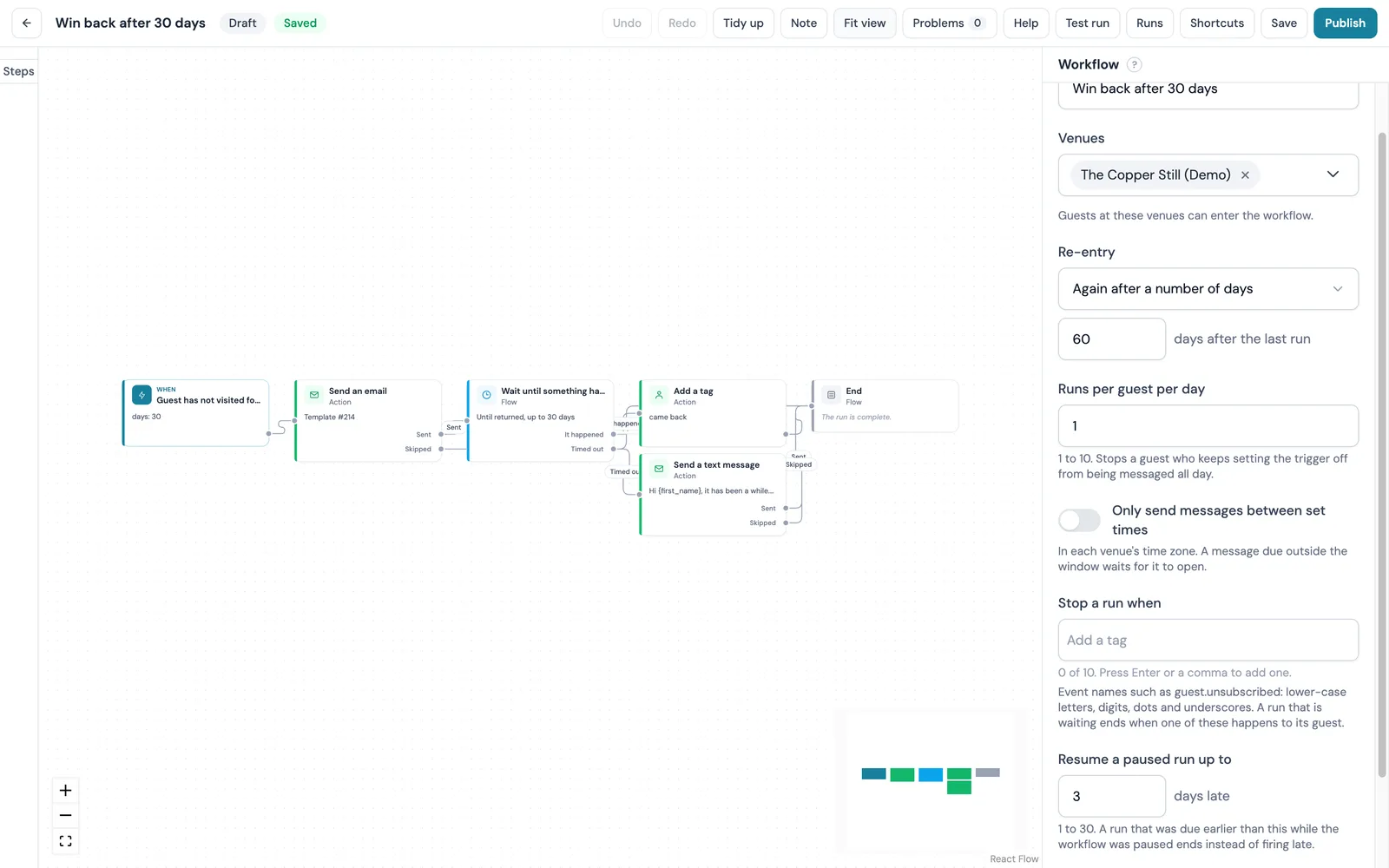
Branches
If a field matches asks a yes or no question of Guest tags or Guest visit count, with twelve ways to compare. Branch on a field puts one field against up to six cases plus a default, and the first match wins. Random split sends 1 to 99 per cent of guests down path A and the rest down B, and each guest stays on the same side for the whole run. Six named conditions need no field: marketing consent, opened or clicked an earlier email, visited again since the run began, in a saved segment, matches a segment's conditions, and a calendar event live at the venue.
Actions
Send an email takes one of your templates, or a subject and body written on the step with merge tags, and can carry one of your offers. Sent and skipped are separate paths, so a guest who could not be emailed still gets the next step you choose. Send a text message runs to 480 characters, spends SMS credits, waits out the venue's quiet hours and goes only to guests who agreed to texts. Add a tag applies up to ten tags per step, matched exactly, across your venues; Remove a tag takes off the tags you name.
The recipes, and the five to switch on first
The New workflow window opens on 35 recipes in nine groups, each with a miniature of its steps. Use this recipe creates a draft with the steps drawn and the settings filled, for you to edit before anything runs. Where a recipe needs something of yours, a template, a segment, an offer or a splash design, the draft shows a warning until you fill it in, and Publish stays disabled until the problems panel is empty.
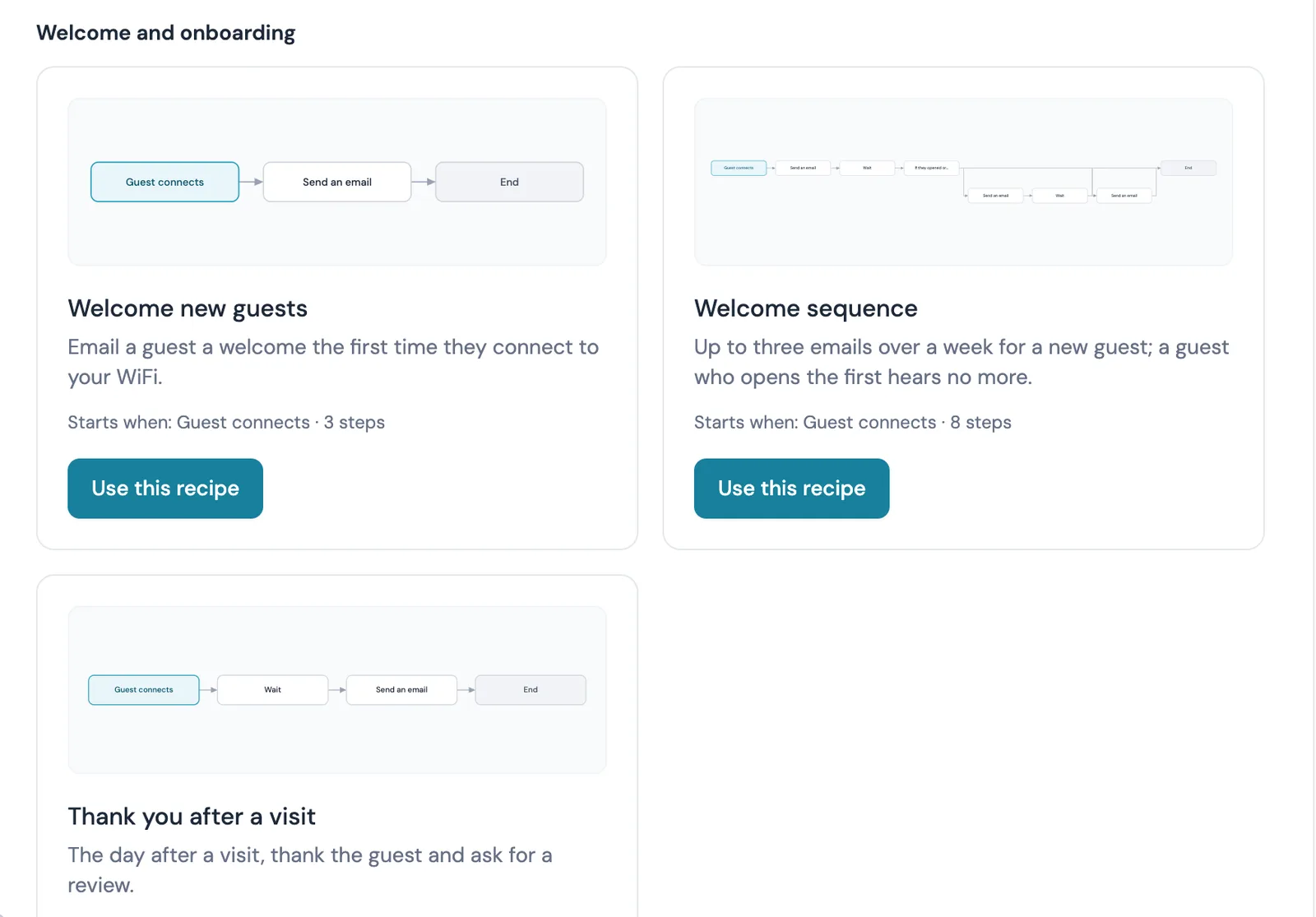
| Group | Recipes | What it needs |
|---|---|---|
| Welcome and onboarding | Welcome new guests; Welcome sequence; Thank you after a visit | Your templates |
| Bring them back | Come back after 60 days; Two lists, two delays; VIP guests get one email, everyone else another; Review request with a reminder | Your templates |
| Birthdays and loyalty | Birthday greeting; Birthday offer; Yearly loyalty points; Points when tagged VIP | Rewards for the offer and points recipes |
| Bookings | Booking reminder; Win back a cancelled booking; After a no-show | Table bookings, not yet on for customers |
| Events | Thank ticket holders after the event; Event reminder | Events and ticketing |
| Reviews | Recover a bad review | Your templates |
| Campaigns and schedule | Weekly offer to a segment; Follow up a campaign click | A saved segment or campaign |
| Venue operations | Match day WiFi name; Match day guests; Quiz night splash page; After the quiz; Happy hour splash page; Private hire; Festival weekend; New menu launch; Live music night | A Planner calendar event |
| Fixtures, weather and holidays | Bank holiday weekend; Match day WiFi name from the fixtures; Pre-match email; Full-time offer; Beer garden weather; Rainy day comfort food; Heatwave | UK bank holidays today; fixtures and weather once a provider is connected |
For a pub, cafe or hotel starting out, five recipes cover the journeys that run on every guest list: Welcome new guests, Thank you after a visit, Come back after 60 days, Birthday greeting and Review request with a reminder. None needs Rewards, Events, table bookings, a calendar event or an external feed, so all five can be published in the first week on any Pro or trial account. Any workflow exports as a JSON file holding its name, trigger, settings and steps, and Import JSON creates a draft from that file at another venue or account.
Venue operations from the calendar: WiFi name, splash swap, message strip
Three steps act on the venue: Change WiFi name, Swap splash page and Show message strip. Each schedules a Planner automation at the run's venue for 1 to 168 hours, or until the calendar event that started the run ends, and the Planner puts the original back when the window closes. They need a start that names a venue, and Change WiFi name needs hardware that can rename the network. The Planner schedules the same changes without a workflow.
Two triggers start a workflow from your Planner calendar, when an event starts and when it ends, and both can be narrowed by the event's name or type. An all-day event runs at the venue's own midnight, and an event set for all venues starts one run per venue. If a calendar event is live lets a guest journey branch on whether an event is on right now.
The Venue operations group has nine recipes. Eight start from a calendar event: the WiFi name changes for a match or a private hire, the splash page swaps for a quiz night, a happy hour or a festival weekend, and a message shows across the splash page for live music, a new menu launch or the day after a quiz. The ninth, Match day guests, tags a guest who connects during a match and emails them the match day offer once. You choose the WiFi name and splash design before publishing; the message wording is written for you.
The Fixtures, weather and holidays group adds seven. Bank holiday weekend shows a holiday splash design and a message from 10:00 two days before a bank holiday until it ends, and works today for England and Wales, Scotland and Northern Ireland. The three fixture recipes (a match day WiFi name from an hour before kick-off, a pre-match campaign, a full-time offer) and the three weather recipes (a beer garden day of 18°C or more, a rainy day, a 25°C heatwave) show as not available until CaptiFi connects a fixtures or forecast provider, and open the day that happens with nothing to change on your side. A recipe that sends a saved campaign needs a repeating campaign, since a one-off draft sends once and is refused the next time.
Rewards, vouchers, webhooks and integrations as steps
Award points credits 1 to 100,000 points to the guest's rewards balance, with the reason shown in their points history. Give a reward or offer issues one of your offers and makes the code available to a later email step, and the email step can carry an offer, so a template with {{reward_code}} in it issues the reward as the email goes out. Both need Rewards, and only the account owner can publish a workflow that awards points.
Attach a WiFi voucher code creates a code valid for 1 to 720 hours. Notify the venue team reaches your staff in the dashboard, by email or through a Slack incoming webhook URL, which is how a workflow on a review rating of three stars or fewer tells the team at once. Send to your webhooks posts the moment to the endpoints you registered, Send the guest to an integration passes them to a platform connected on your Integrations page, such as Klaviyo or Square, and Send a saved campaign sends an existing campaign from a venue-level workflow.
Consent, quiet hours and the per-guest test run
An email step skips any guest who did not tick the marketing box at the splash page, has since unsubscribed at any of the workflow's venues, has asked for their record to be erased, or whose address is undeliverable or suppressed. A text step skips a guest with no phone number, no text consent or a suppressed number. A skipped guest is counted with the reason, and every send is recorded so a retry never sends twice.
Texts wait for the venue's quiet hours to end, and a per-workflow send window on the venue clock holds both emails and texts until it opens. One-click unsubscribe from Gmail or Yahoo Mail opts the recipient out at once.
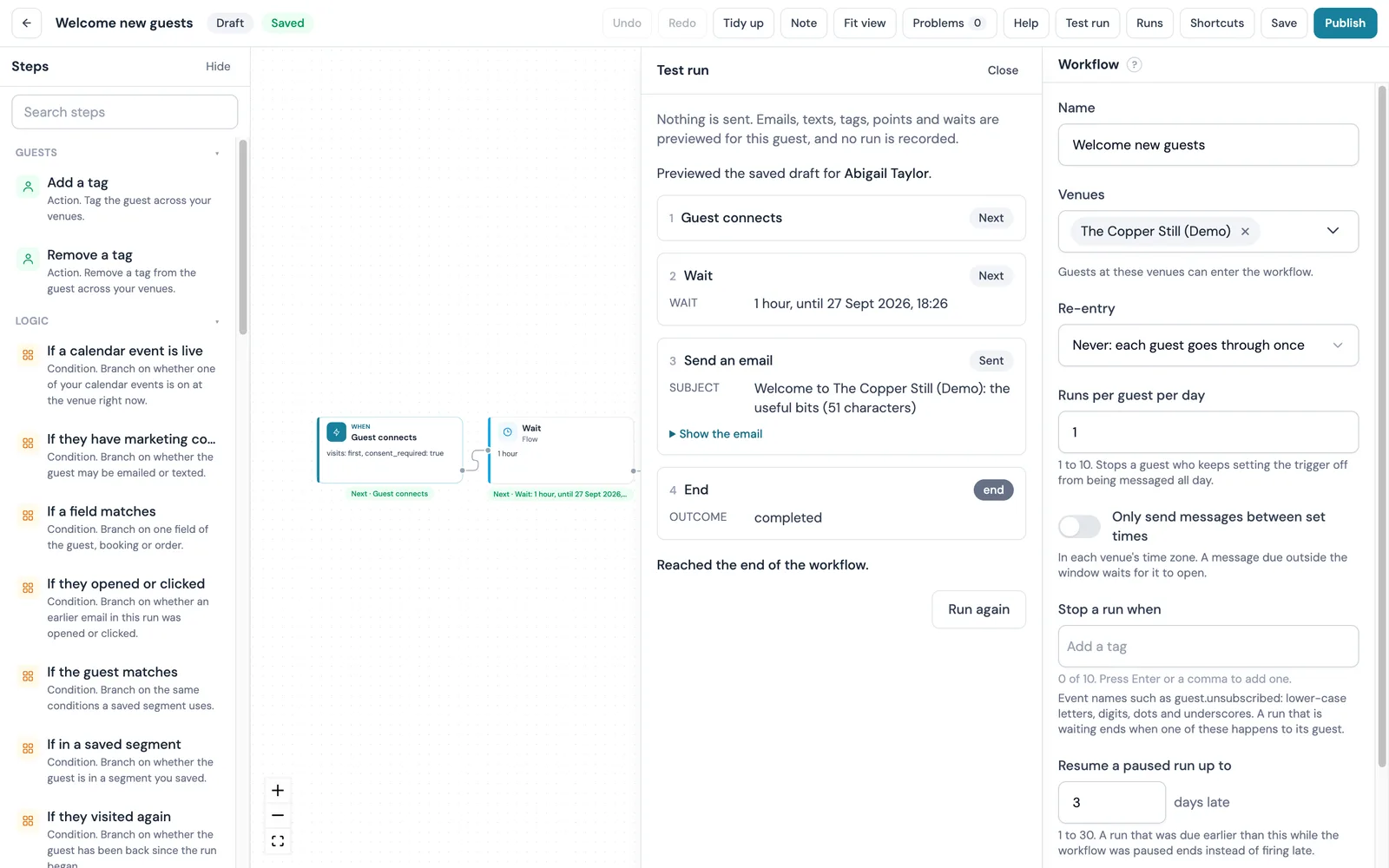
Test run walks one guest of your choice through the saved draft and lists what each step would do: the wait and when it would end, the email subject with the merge tags filled in, the tag or the points, and the path each branch would take. Nothing is sent and no run is recorded.
Publishing pins a numbered version. Guests already in a run finish on the version they started, and any of the last 50 published versions can be viewed or restored to the draft. Pause refuses new enrolments and leaves live runs where they are, and Archive cancels them. Building a workflow needs the Manage workflows permission; reading the runs list needs View guest data.
Reading a workflow's results per step
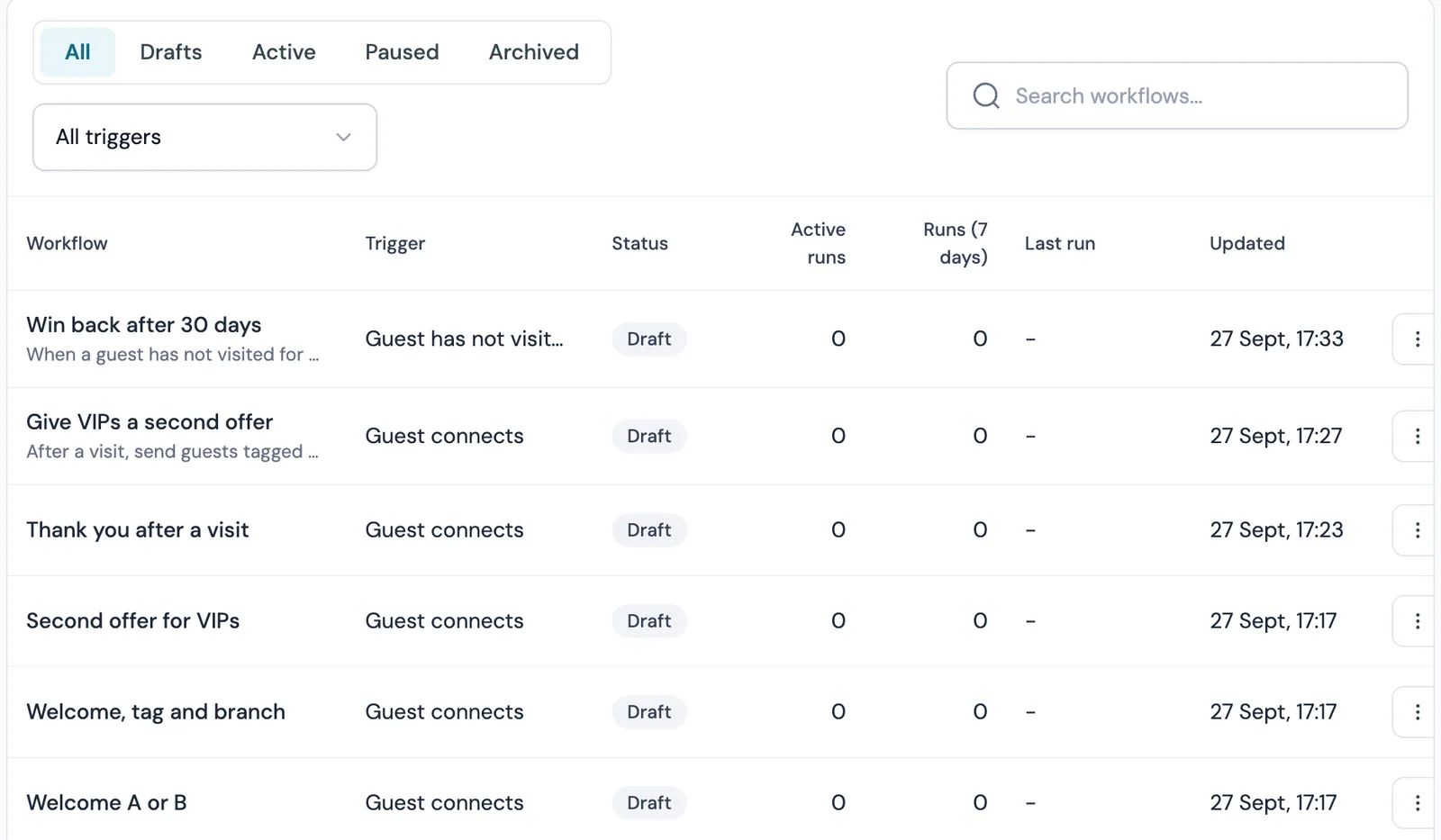
A workflow's overview shows its runs by status and by outcome, how many emails and texts it sent, how many are holding for allowance, credits, quiet hours or the send window, and how many guests were turned away and why. Under the counts, one row per step shows how many runs entered it, how many took each output, how many are waiting there now and how many were skipped, with the reasons.
A Send an email step with a high skipped count points at consent or missing addresses. A wait with a high waiting count is doing its job. A branch shows how many guests took each side, so a restaurant can see how many diners were tasting-menu guests that week.
Click a row to open the runs list filtered to that step, then open any run to read its timeline: each step, the output it followed, the outcome or skip reason, and for an email whether and when it was opened and clicked. Message text is never shown there. Finished runs are kept for 365 days.
Plans and price: Pro and above, every trial
Workflows is part of the Pro plan and every plan above it, with no add-on and no per-workflow charge. Every account on a free trial can use it whatever plan the trial starts on, so a venue trialling on Essentials or Growth can build and publish workflows for the full 30 days. A paying Growth or Essentials account that opens Workflows sees an upgrade prompt naming Pro.
Emails a workflow sends count against the plan's monthly email allowance, 5,000 on Pro, and text messages spend prepaid SMS credits, with the cost shown before anything sends. Pro is $219 a month on the pricing page, shown in your currency. The pubs page covers the rest of what CaptiFi does for a bar or pub.
Workflows, single-trigger automations and a generic automation tool compared
Hospitality marketing automation software comes in three shapes, and a venue often runs more than one. The table sets CaptiFi Workflows beside CaptiFi's own single-trigger automations and a general-purpose automation tool that is not connected to your guest WiFi.
| Question | CaptiFi Workflows | CaptiFi automations (single trigger) | A general-purpose automation tool |
|---|---|---|---|
| What starts it | Thirty moments: guest, venue, calendar, bank holiday, webhook, ticket and reward | Five guest moments, from Guest connects to Birthday | Whatever it is connected to; the WiFi sign-in has to be sent to it first |
| Shape of the journey | Waits, branches and actions on a canvas, up to 40 steps | One message and up to five follow-ups in a line | Branching where the tool supports it; the guest's record is held elsewhere |
| Actions on the venue | Change WiFi name, swap splash page, show a message strip | None | None; it cannot reach your access points or splash page |
| Consent and quiet hours | Read from the splash page consent and the venue's quiet hours on every send | Only opted-in guests are emailed | Yours to build and keep in step with the splash page |
| Results | Per step: entered, each output, waiting, skipped with reasons; a run timeline; a test run | Per step: entered, emailed, opened, clicked, came back within 30 days | Task history, with no view of whether the guest came back |
| Ready-made journeys | 35 recipes in nine groups; JSON import and export | Four presets in one click | Templates for other software, none for guest WiFi |
The three are not exclusive: a workflow step can post to your webhooks or send the guest to a connected integration, so a general-purpose tool or a CRM picks up where the WiFi journey leaves off. To build the first workflow, open Marketing, then Workflows, in the my.captifi.io dashboard, press New workflow and pick a recipe. Nothing runs until you publish it.
Sources: the CaptiFi Workflows feature page and the Workflows customer guide (docs.captifi.io/dashboard/workflow-builder), and the CaptiFi release notes of 25 and 28 September 2026 on the Pro plan gate, venue operations, product actions, recipe groups and the provider gate on fixture and weather recipes. The single-trigger automation column reads from the CaptiFi email automation feature page.
Frequently asked questions
Quick answers to the most common questions about this topic.
What is a WiFi marketing automation workflow?
What can start a CaptiFi workflow?
Which plan includes Workflows, and can I use it on a free trial?
What is the difference between a CaptiFi automation and a workflow?
Which workflow recipes should a pub, cafe or hotel switch on first?
Can a workflow change the WiFi name or splash page for an event?
Are the fixture and weather recipes available now?
How does a workflow handle marketing consent and quiet hours?
What do the results show for a workflow?
The CaptiFi Editorial Team writes about guest WiFi marketing, captive portals, GDPR-compliant data capture, and local SEO for venue operators. We base our recommendations on real customer outcomes and verified third-party reviews from G2.com.
Ready to turn your guest WiFi into a marketing engine?
CaptiFi captures customer data from every WiFi login, automates Google reviews and email follow-ups, and plugs into the tools you already use. Hardware included (refundable deposit), transparent pricing, 30-day free trial.