Engage

WiFi Marketing Workflow Builder for Pubs, Restaurants, Cafes and Hotels

Many venues send one welcome email and stop. Workflows sends every message after that for you, each one at the moment you chose: a birthday offer before the weekend, or a text to a regular who has not been in for a month. Start from one of 35 recipes or draw the journey yourself on a canvas; the WiFi sign-in starts it, and the guests you would otherwise have lost hear from you again. Pro plan and above.

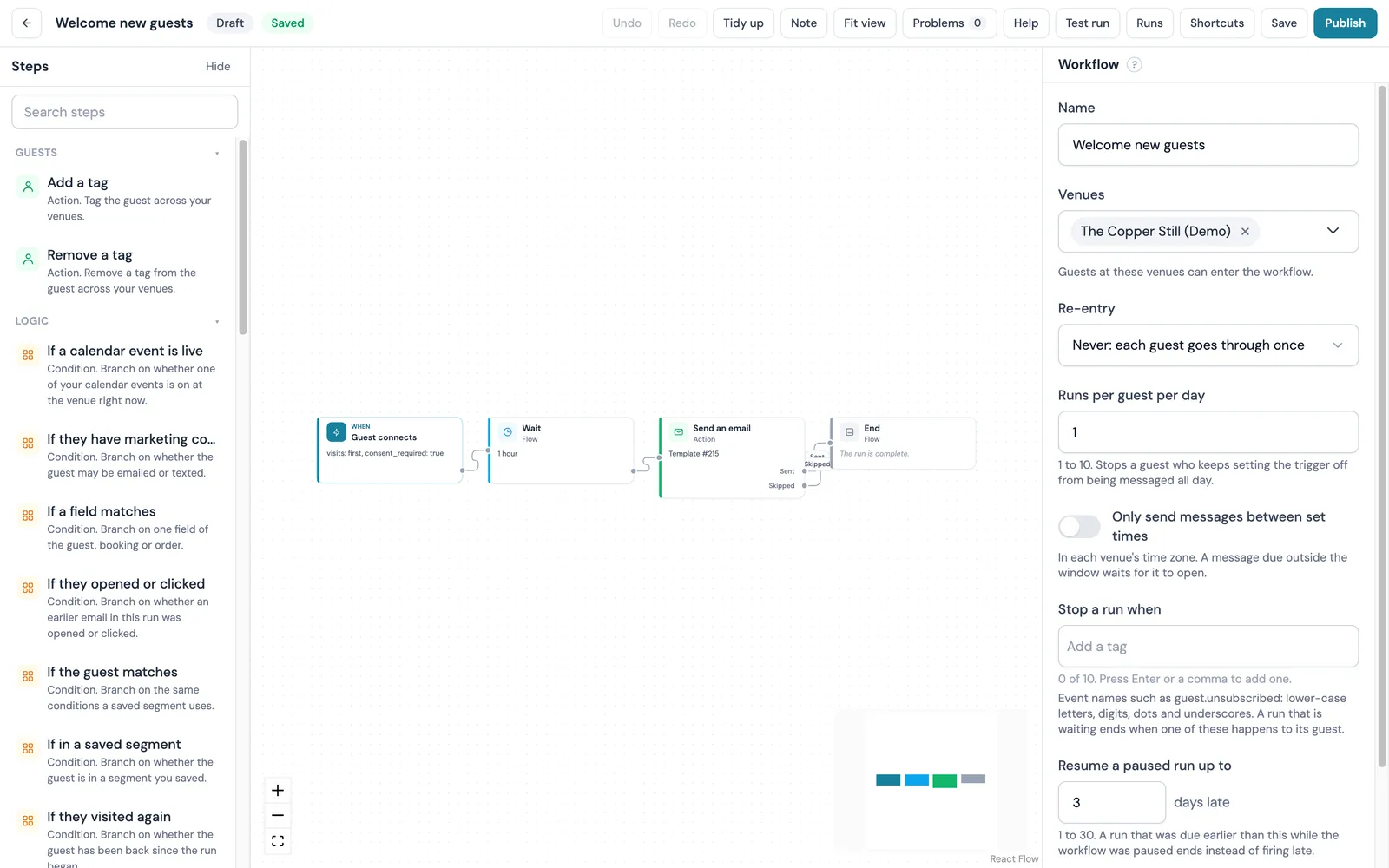
The CaptiFi Workflows canvas with a welcome journey: Guest connects, Wait one hour, Send an email and End, with the step palette on the left and the workflow settings panel open on the right
The Workflows canvas: Guest connects, Wait one hour, Send an email, End.

What is CaptiFi Workflows?

CaptiFi Workflows is a visual workflow builder inside the CaptiFi dashboard for pubs, restaurants, cafes, hotels and multi-site groups. It turns what a guest does on your WiFi, such as a first sign-in, a return visit, a long absence or a birthday, into a chain of waits, conditions and actions: emails, text messages, tags, reward points and offers. It also runs your venue on a calendar: the WiFi name, the splash page and a message strip can change for an event and change back when it ends. You can draw a journey from scratch or start from one of 35 recipes.

Updated September 2026. Read the Workflows guide for every step, setting and limit.

Which CaptiFi tool do I need: Automated Marketing, Review Automation or Workflows?

  • Automated Marketing (Email Automations in the dashboard) sends one preset journey in a straight line after one event, with up to five follow-ups.
  • Review Automation asks for a review after a visit and tracks the result.
  • Workflows draws the journey on a canvas: branches, waits on the venue clock, text messages, tags, points, offers, numbered versions and results for every step, with 35 recipes to start from.

CaptiFi is a guest WiFi marketing platform for venues, restaurants, hotels, cafés, retail spaces and short-term rentals. It turns branded WiFi logins into first-party customer data, automated Google review requests, repeat visitor insights and email marketing lists.

Why venues switch it on

Before, and with CaptiFi

Before

Many venues send one welcome email and stop there. The second message, the one that depends on whether the guest came back within a fortnight or carries a particular tag, never gets sent because somebody would have to remember to send it.

With CaptiFi

CaptiFi Workflows is a visual workflow builder inside the CaptiFi dashboard. One start begins each journey: a guest moment (Guest connects, Guest returns, Guest has not visited for a while, Birthday, Tag added or removed, Marketing consent changes, Guest enters a segment or Started by staff), a schedule, a campaign open or click, a review rating, an access point going offline, an incoming webhook, a calendar event or a bank holiday, or a ticket or reward moment when Events or Rewards are on the plan. Steps then wait (a fixed time from one minute to a year, until a time of day in the venue's time zone, until a set time before or after a date the start supplies, or until the guest returns, books, redeems, opens, clicks, checks in, attends, changes consent or leaves a review), branch (If a field matches on a guest's tags or visit count, Branch on a field with up to six cases, Random split, and six named conditions on consent, opens and clicks, return visits, saved segments and live calendar events) and act (Send an email, Send a text message, Add a tag, Remove a tag, Award points, Give a reward or offer, Attach a WiFi voucher code, Notify the venue team, Send to your webhooks, Send the guest to an integration, Send a saved campaign, Change WiFi name, Swap splash page, Show message strip). 35 recipes in nine groups create the common journeys as drafts to edit, and any workflow exports and imports as a JSON file. The results view counts every step: entered, output taken, sent, skipped and why. Publishing pins a numbered version and guests already in a run finish on the version they started. Emails skip guests without consent and count against the plan's monthly allowance; texts spend credits and wait out quiet hours.

What you get

Start a journey from a WiFi sign-in, a return visit, a set number of days away, a birthday, a tag or consent change, a saved segment, a schedule, a campaign open or click, a review rating, an access point going offline, an incoming webhook, a calendar event or a bank holiday, and from ticket and reward moments when Events or Rewards are on your plan

Branch on a guest's tags, visit count or consent, on whether they opened or clicked an earlier email or visited again, on a saved segment, on up to six cases at once, or on a random split for an A/B test that keeps each guest on the same side

Wait a fixed time from one minute to a year, until a time of day on the venue clock, until a set time before or after a date the start supplies, or until the guest returns, books, redeems, opens, clicks, checks in, attends, changes consent or leaves a review, with a time limit

Send an email or a text message, add or remove a tag, award points, give a reward or offer, attach a WiFi voucher code, notify the venue team, post to your webhooks, send the guest to a connected integration, or change the WiFi name and splash page for the length of an event

Results for every step: guests entered, the output they took, how many are waiting there and why any send was skipped, with sends and holds counted on the overview, a step-by-step timeline for any single run and a test run for one guest before you publish

35 recipes in nine groups create the common journeys as drafts to edit before publishing, and any workflow exports and imports as a JSON file between your venues and accounts

Publish a numbered version: the change takes new guests only, every guest already in a run finishes on the version they started, and earlier versions can be viewed or restored to the draft

Emails skip guests who never opted in, unsubscribed, were erased or bounced, texts skip guests without text consent, and every send is recorded so a retry never sends twice

One Manage workflows permission for the team, venue selection per workflow, per-venue clocks and quiet hours, a daily cap per guest and a re-entry rule per workflow

Screenshots

See it in your dashboard

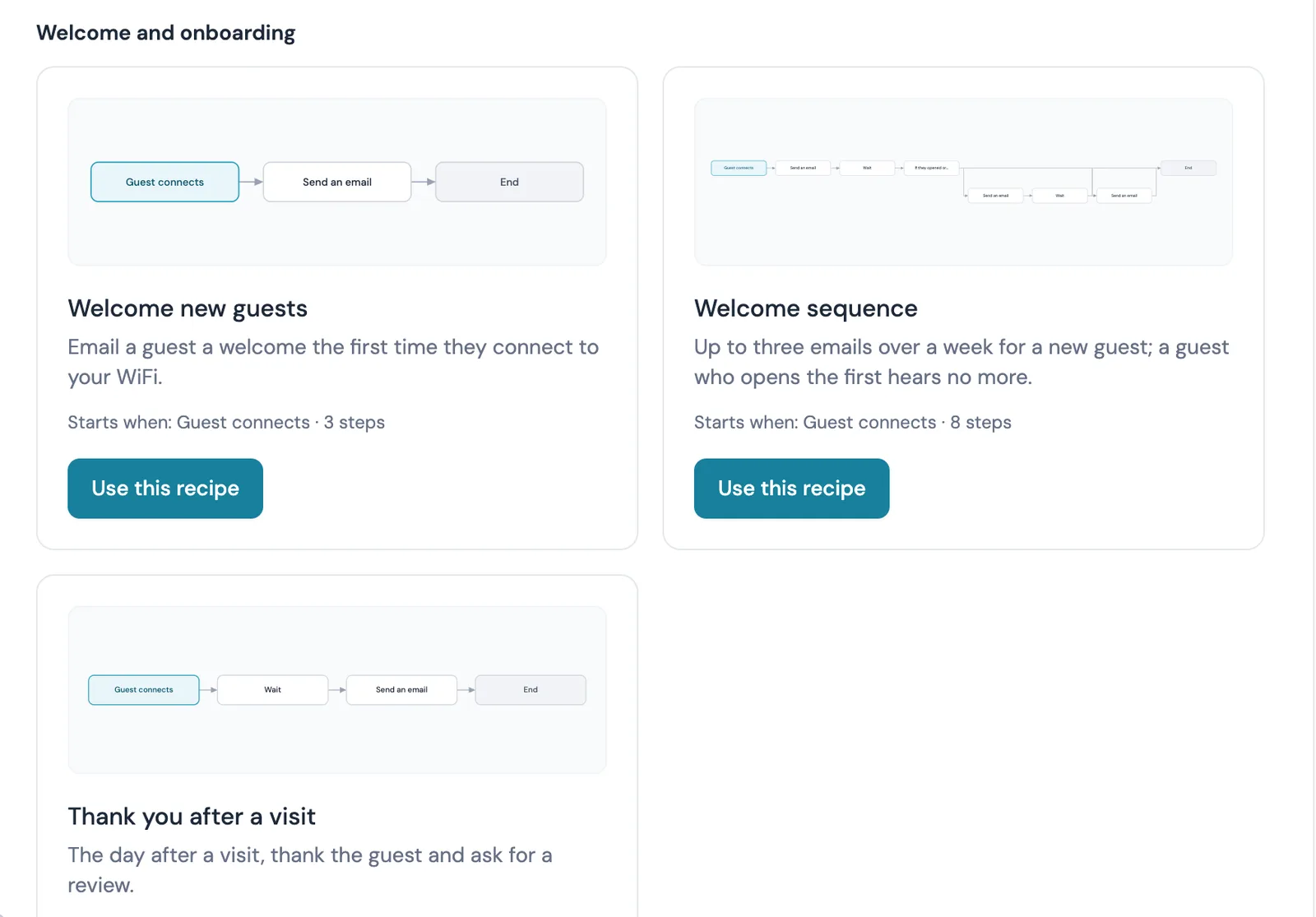
The New workflow window in CaptiFi showing the Welcome and onboarding recipe group: Welcome new guests, Welcome sequence and Thank you after a visit, each with a miniature of its steps and a Use this recipe button
The recipe gallery: 35 recipes in nine groups, each a draft in one click.

Start from a recipe or from scratch

The New workflow window opens on 35 recipes in nine groups, each with a miniature of its steps and a one-line promise. Use this recipe creates a draft with the steps drawn and the settings filled, for you to edit before anything runs. From scratch asks for a name, a start and the venues it runs at.

  • 35 recipes, from Welcome new guests to Bank holiday weekend
  • Every recipe is a draft until you publish it
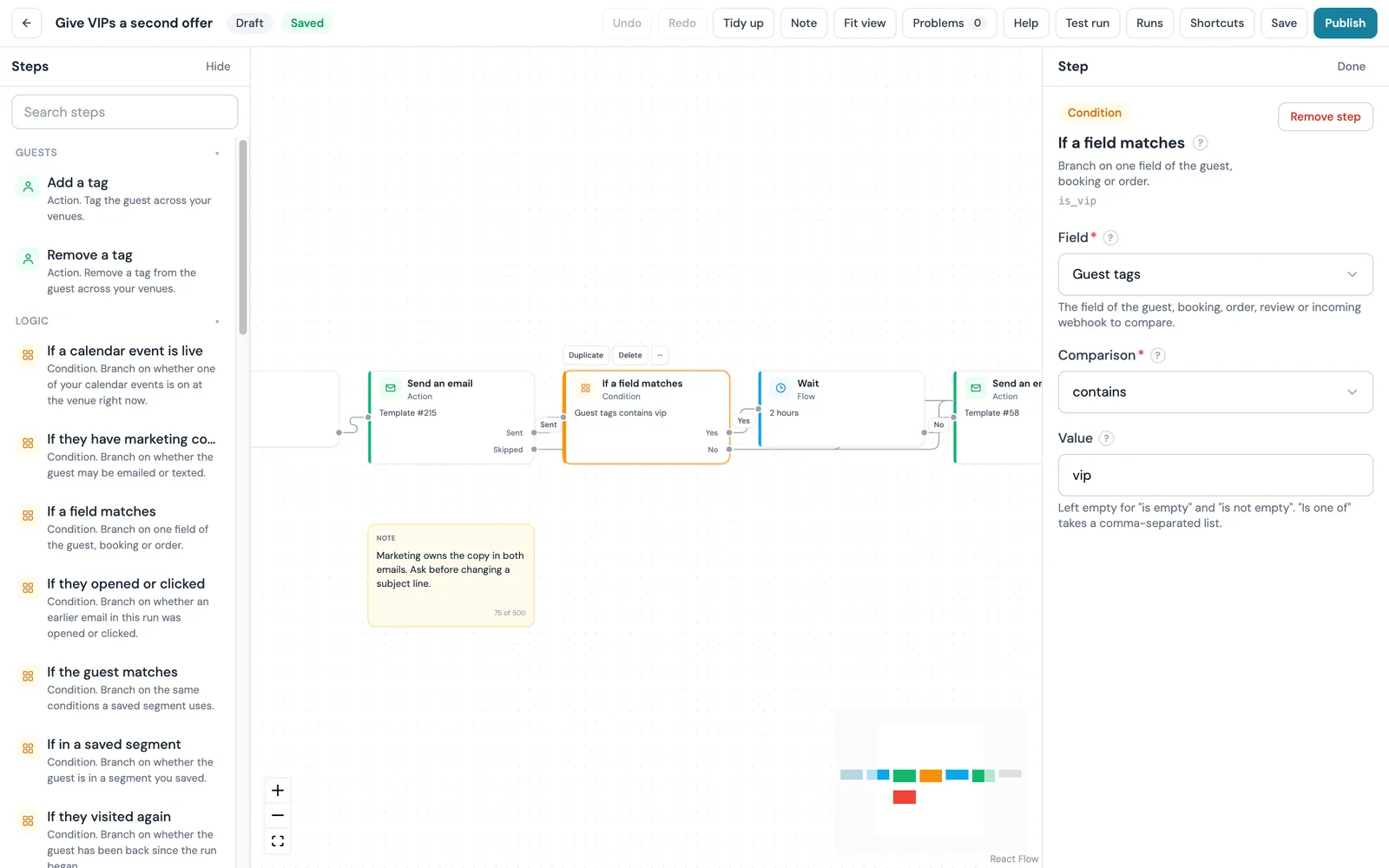
An If a field matches step on the CaptiFi Workflows canvas set to Guest tags contains vip, with a Yes path to a wait and a second email and a No path onwards, and the step's Field, Comparison and Value settings beside it
If a field matches on Guest tags: a yes path and a no path.

Branch on what you know about the guest

If a field matches asks a yes or no question of one guest field, Guest tags or Guest visit count, with twelve ways to compare, from is to contains to is empty. Branch on a field puts one field against up to six cases plus a default, and the first match wins. Random split sends a share of guests from 1 to 99 per cent down path A and the rest down B. Six named conditions need no field at all: marketing consent, opened or clicked, visited again, in a saved segment, matches a segment's conditions, and a calendar event live at the venue.

  • Yes and no paths that each lead somewhere
  • Up to six cases plus a default on one field
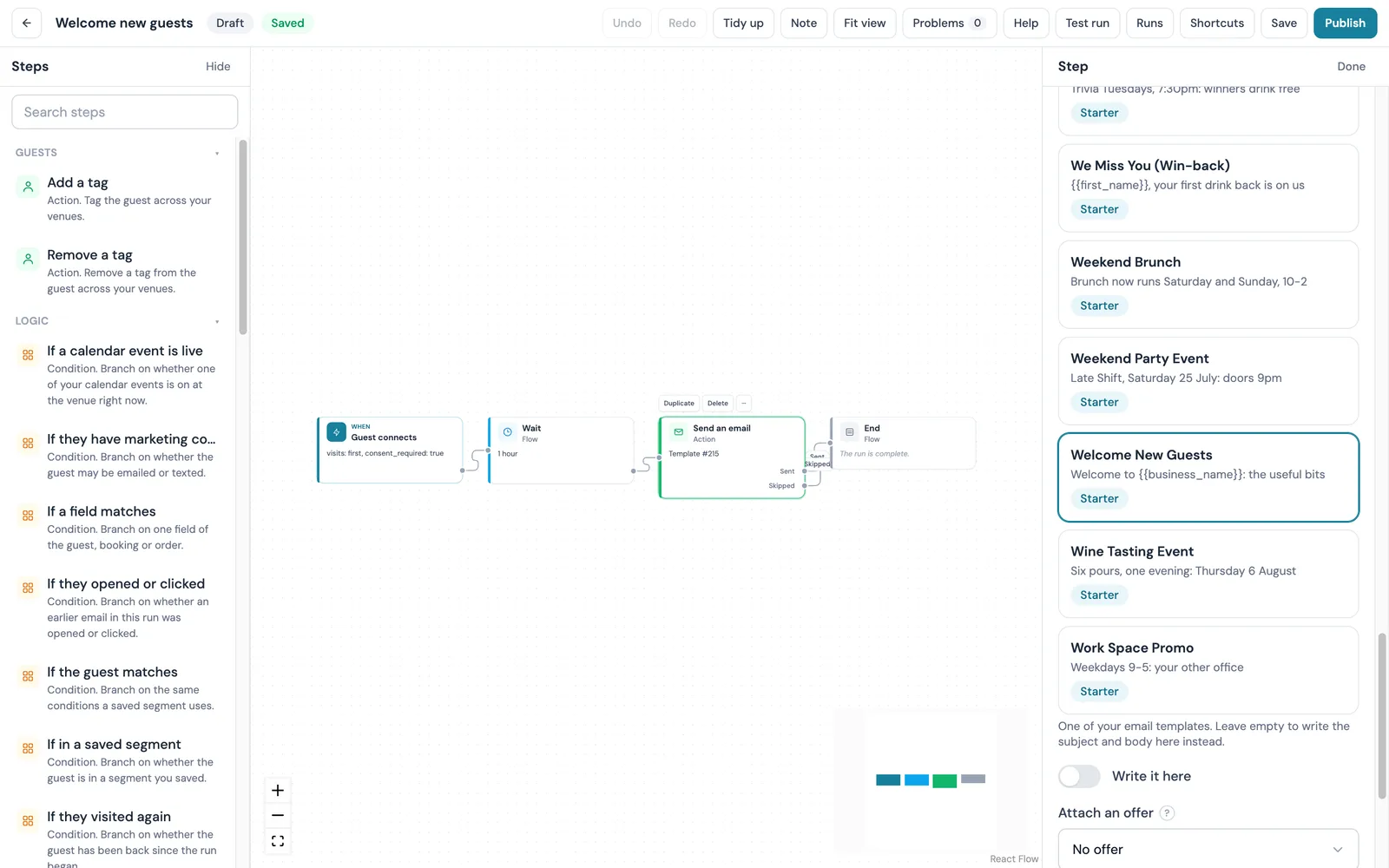
The settings panel for a Send an email step in CaptiFi Workflows, listing the account's email templates with Welcome New Guests selected, a Write it here toggle and an Attach an offer field
Send an email: one of your templates, or a subject and body written in place.

Every step has its settings beside the canvas

Send an email takes one of your templates, or a subject and body written on the step with merge tags such as the guest's first name, and can carry one of your offers. Sent and skipped are separate paths, so a guest who could not be emailed still gets the next step you choose. Each card carries a one-line summary of what it will do.

  • A template, or a subject and body written in place
  • Sent and skipped as separate paths
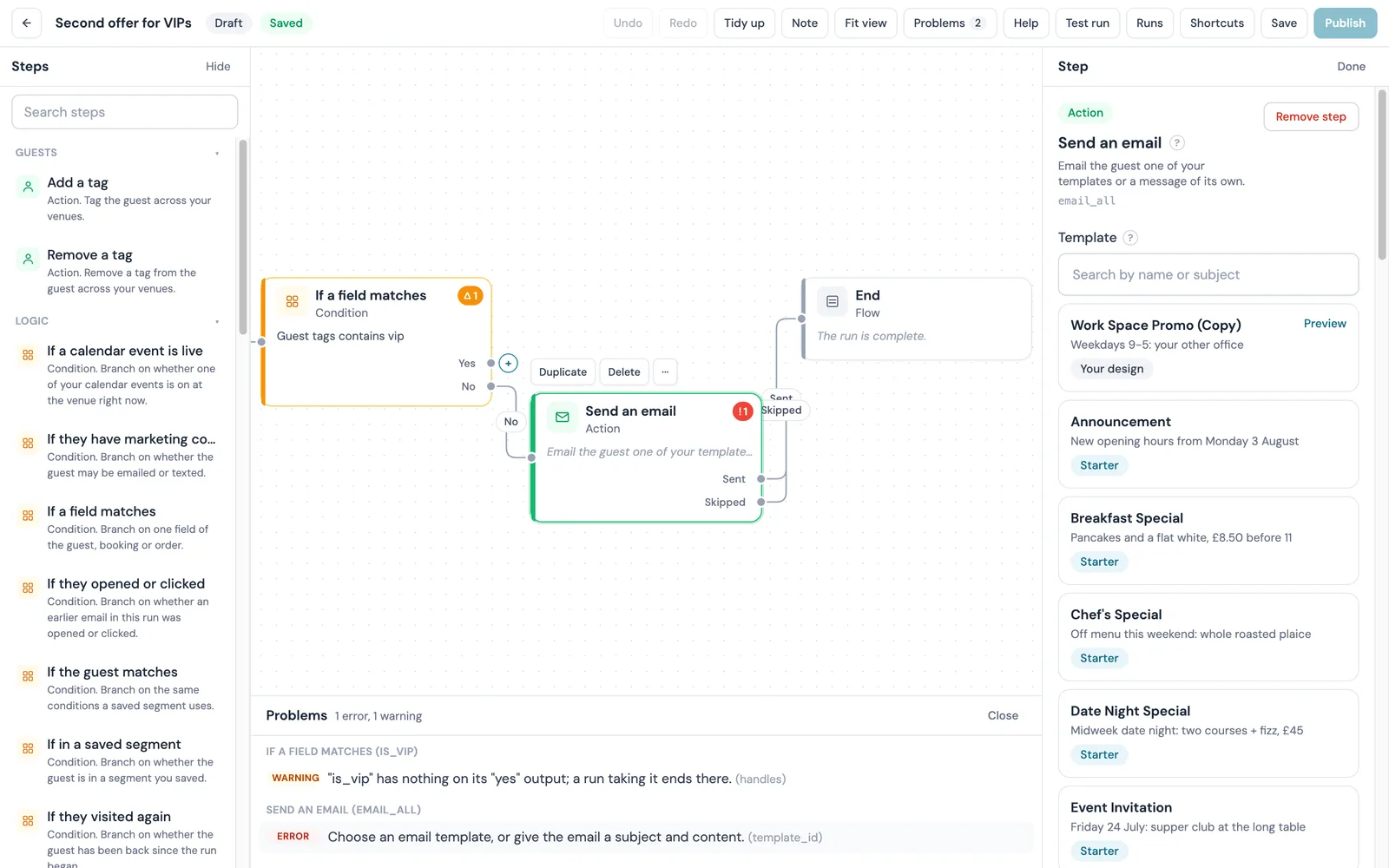
The problems panel under the CaptiFi Workflows canvas listing a warning that a Yes output has nothing on it and an error that the email step needs a template, with Publish disabled in the top bar
The problems panel: one warning, one error, Publish disabled.

Nothing publishes with a gap in it

Every path has to lead somewhere, and an email step needs a template or a body before it can run. The problems panel lists each reason a draft cannot be published, grouped by step and one click from it. Drafts save as you go, so you can leave and come back; Publish stays disabled until the list is empty.

  • Unwired outputs and empty steps named on the card
  • Publish disabled until every problem is fixed
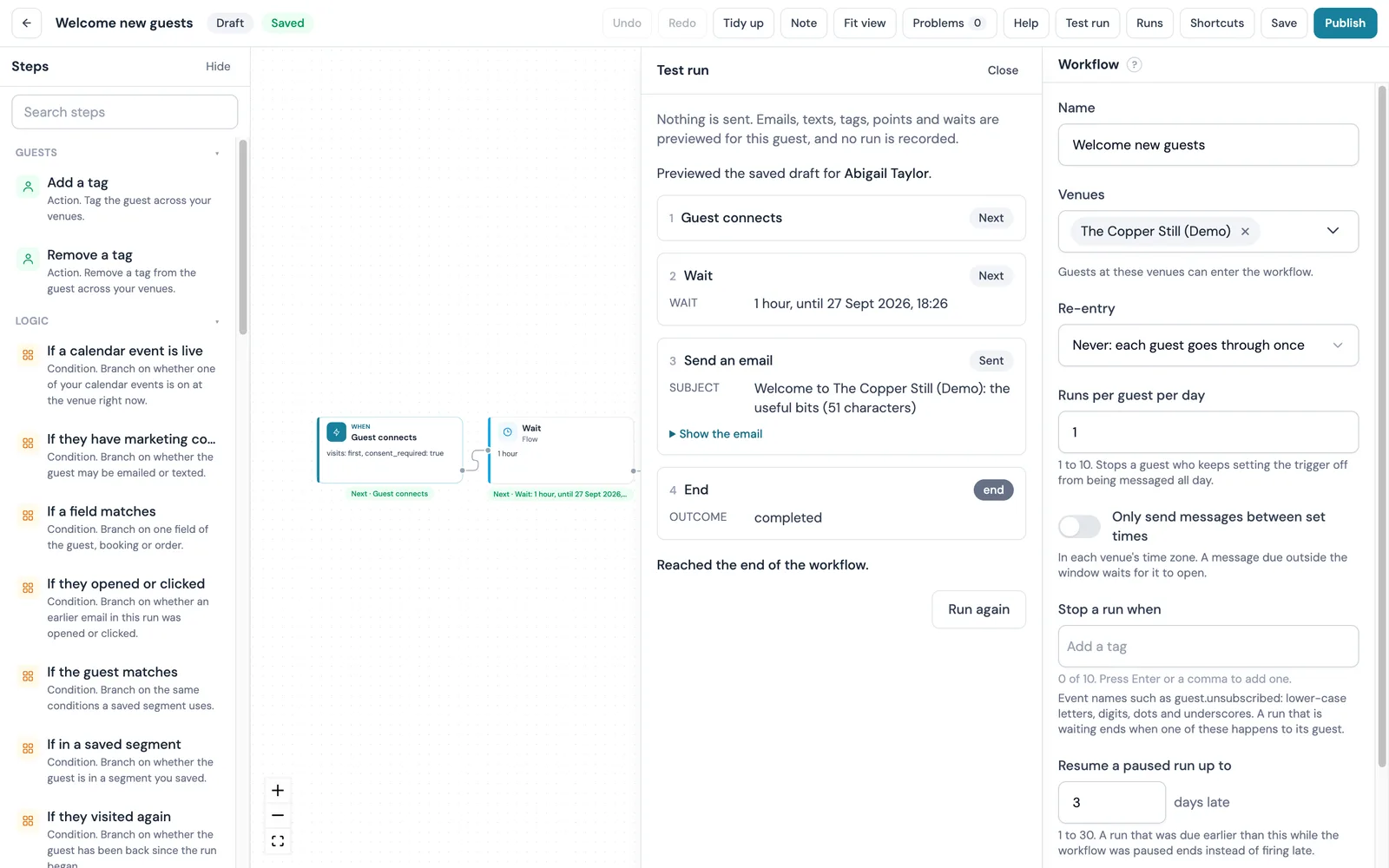
The Test run panel over the CaptiFi Workflows canvas previewing the welcome journey for one guest: Guest connects, a one hour wait with the time it would end, the email subject with the venue name filled in, and End
Test run: the welcome journey previewed for one guest.

Test it on one guest before anyone hears from you

Test run walks a guest of your choice through the saved draft and lists what each step would do: the wait and when it would end, the email subject with the merge tags filled in, the tag or the points, and the path each branch would take. Nothing is sent and no run is recorded, so you can try the journey as often as you like before you publish.

  • Every step previewed for a real guest record
  • Nothing sent and no run recorded
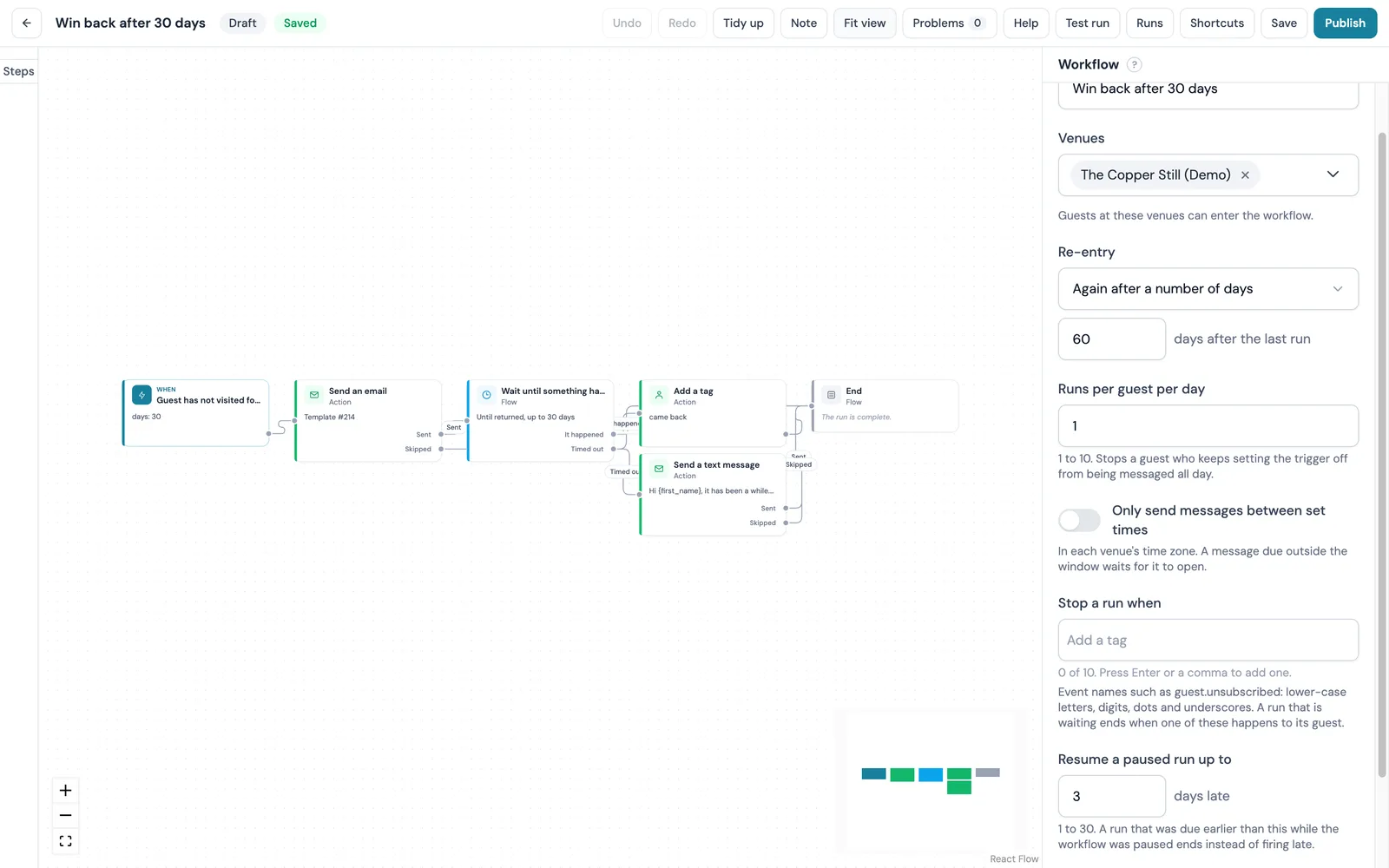
A CaptiFi win-back workflow on the canvas: Guest has not visited for a while, Send an email, Wait until something happens with It happened and Timed out paths, Add a tag and Send a text message, with the workflow settings showing re-entry after 60 days
A win-back: an email, a wait on the guest returning, then a tag or a text.

One path when the guest returns, another when the wait times out

Guest has not visited for a while starts the journey after 30 days away. Send an email goes first, then Wait until something happens holds the run for up to 30 days with returned as the event. A guest who signs in again takes the It happened path, is tagged came back and hears nothing more; a guest who stays away takes the Timed out path to one text message. Re-entry is set to 60 days after the last run, so nobody is chased twice in a season.

  • One path for each outcome of a wait
  • A re-entry rule on every workflow
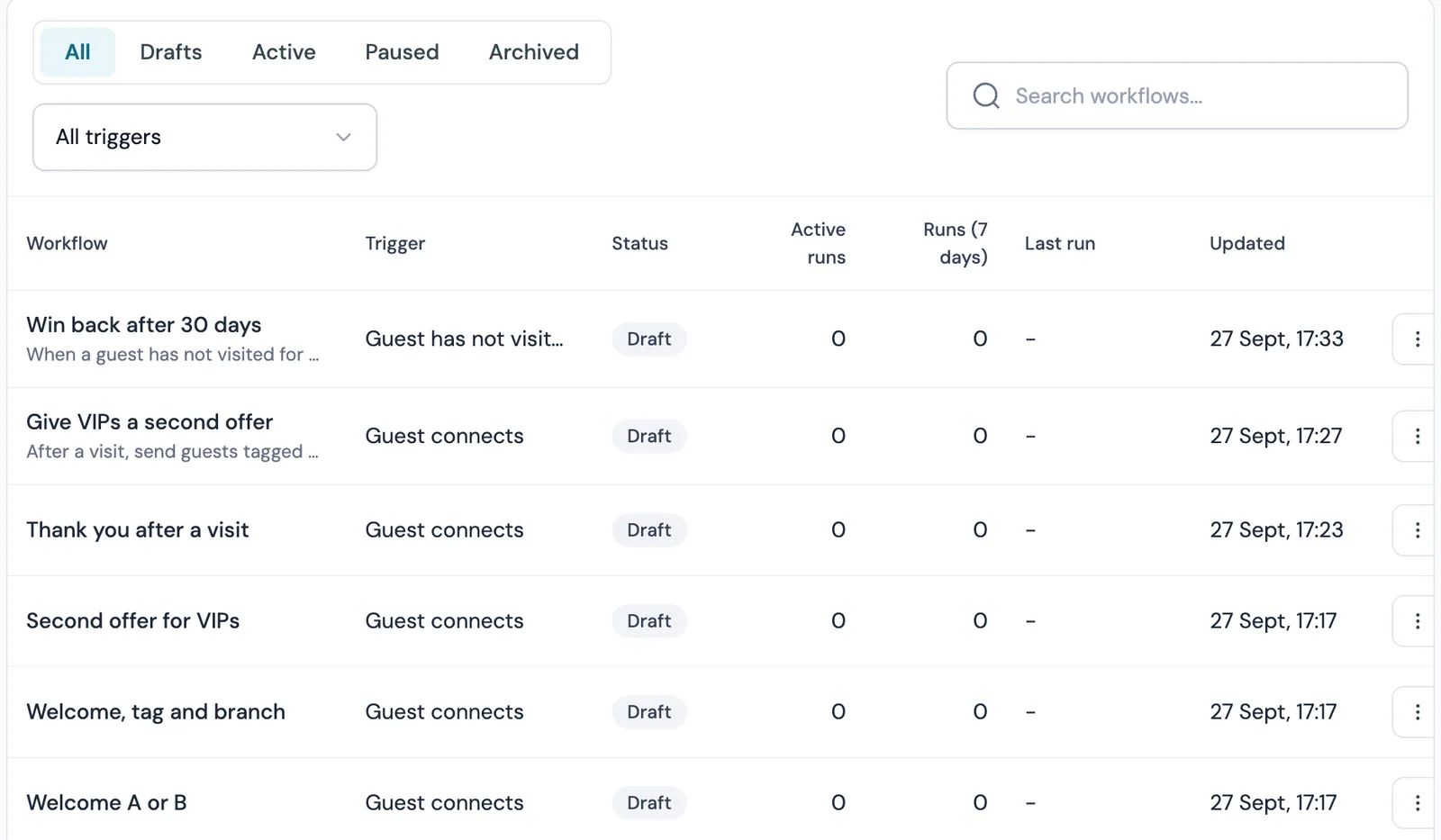
The CaptiFi Workflows list with the All, Drafts, Active, Paused and Archived tabs and rows showing each workflow's trigger, status, active runs, runs in the last seven days, last run and updated time
The Workflows list: trigger, status, active runs and the last seven days on every row.

Every workflow, its status and its last seven days

The Workflows list shows each workflow with its trigger, its status (draft, active, paused or archived), the runs active now, the runs it started in the last seven days, its last run and whether it carries unpublished changes. Pause refuses new enrolments and leaves live runs where they are; Resume picks them up; Archive cancels the live runs; Duplicate copies the draft so you can start a variant without touching the original; Export JSON downloads it as a file.

  • Runs in the last seven days on every row
  • Unpublished changes marked on the row

What can a CaptiFi workflow do?

A CaptiFi workflow waits, branches and acts, for a guest or for the venue, from one of thirty starting moments. Eight are about the guest: Guest connects, Guest returns, Guest has not visited for a while, Birthday, Tag added or removed, Marketing consent changes, Guest enters a segment and Started by staff. The rest are a schedule, a campaign opened or clicked, a review rating, an access point going offline or coming back, an incoming webhook, a calendar event starting, a calendar event ending, a bank holiday, and the seven ticket moments and seven reward moments that come with Events and Rewards.

  • Start a journey from a WiFi sign-in, a return visit, a set number of days without a visit, a birthday, a change to a guest's tags or consent, a guest entering a saved segment, a click by a member of your team, a schedule on the venue clock, a campaign opened or clicked, a review rating, an access point going offline, a request from another system, a calendar event or a bank holiday.
  • Wait a fixed time from one minute to a year, until a time of day on the venue's clock, until a set time before or after a date the start supplies, or until the guest does something.
  • Split the journey on a guest field (their tags or their visit count), on up to six cases at once, at random for an A/B test, or on whether the guest has consent, opened or clicked an earlier email, has visited again, sits in a saved segment or matches its conditions, or is in during a calendar event.
  • Send an email or a text message, add or remove a tag, award reward points, give one of your offers, attach a WiFi voucher code, notify your team, post to your webhooks, send the guest to a connected integration, or send a saved campaign.
  • Change the guest WiFi name, swap the splash design or show a message across the splash page for the length of an event, then put everything back.
  • Start from one of 35 recipes, each created as a draft you edit before publishing, or import a workflow another of your venues exported as a JSON file.
  • See, for every step, how many guests entered, which output they took and why any send was skipped, and open any single run step by step.
  • Test the draft on one guest before you publish and see what every step would do for them.
  • Publish a numbered version. Guests already mid-journey finish on the version they started, and any earlier version can be viewed or restored.
  • Pause without losing anyone mid-journey, and choose how long before a guest can enter the same journey again.
  • Choose the venues each workflow runs at. Consent, quiet hours and the send window are honoured per venue.
How it works

How a WiFi marketing workflow works

You build a workflow in four steps: pick a recipe or name it and choose what starts it, add waits and conditions on the canvas, add the actions, then test it, publish and watch the results.

1

Start from a recipe, or name it and choose what starts it

Open Marketing, then Workflows, in the CaptiFi dashboard and press New workflow. Pick one of the 35 recipes and it is drawn for you, or start from scratch: give it a name, pick the start, for example Guest connects, and tick the venues it runs at. Either way it is saved as a draft; nothing runs until you publish it.

2

Add waits and conditions on the canvas

Press the plus on the start's output and pick a step: Wait, Wait until a time of day, Wait until something happens, If a field matches, Random split, or a named condition such as If they have marketing consent or If they visited again. Every path has to lead somewhere, and the problems panel lists anything still missing.

3

Add the actions

Add Send an email from a template or written in place with merge tags, Send a text message, Add a tag, Remove a tag, Award points, Give a reward or offer, Notify the venue team, or a venue step such as Change WiFi name. Each step shows a one-line summary on its card and its settings beside the canvas.

4

Test it, publish and watch the results

Run a test for one guest to see what every step would do, then press Publish. CaptiFi checks the draft, pins a numbered version and starts enrolling guests. The results view shows every step with the number of guests who entered it, the output they took and the reason for any skipped send.

The full list of merge tags sits under Personalise in the email builder guide. The five-minute quick start in the Workflows guide walks through the first one with screenshots.

The building blocks

The building blocks: starts, waits, branches and actions

Every workflow is one start followed by the waits, branches and actions you draw after it, each picked from a list and set up in a form beside the canvas.

What can start a WiFi marketing workflow?

  • A guest signs in to your WiFi, for the first time or on every visit. Tick "Only guests with marketing consent" to enrol opted-in guests alone.
  • A guest you already know comes back. You choose which visit counts, from the second to the hundredth.
  • A guest has not been in for a while. You choose how many days, up to a year; it is checked once a day.
  • A guest's birthday is coming up, from the day itself to 30 days before.
  • A tag is added to or removed from a guest, a guest's marketing consent changes, a guest first matches one of your saved segments (checked once a day), or a member of your team starts it for one guest.
  • On a schedule: hourly, daily, weekly or monthly at a time on the venue's clock, for a saved segment or every subscribed guest, up to 5,000 guests per occurrence.
  • A guest opens or clicks one of your campaigns; a guest leaves a rating of 1 to 5 on your review request page; one of your access points goes offline or comes back for a set number of minutes.
  • Another system posts to a signed address that belongs to the workflow, so a form on your website or a booking system can start a run. Needs the CaptiFi API on your plan.
  • A calendar event on your Planner starts or ends at the venue, or a bank holiday in England and Wales, Scotland or Northern Ireland is up to seven days away. These starts name a venue and no guest, so the steps after them change the WiFi name, the splash page or the message strip.
  • With Events on your plan: Ticket purchased, refunded or checked in, Event published or cancelled, Before an event and After an event. With Rewards: Reward issued, redeemed or about to expire, Points earned, Points balance reaches a total, Tier changed and Joins the rewards programme.

When the next step happens

  • Wait a fixed time, from one minute to a year.
  • Wait until a time of day in the venue's time zone, on the weekdays you pick if you want to.
  • Wait until the guest does something (returns, books, redeems, opens, clicks, checks in, attends, changes consent or leaves a review) or until your time limit runs out, with one path for each outcome.
  • Wait until before or after a date: from the day itself to 90 days either side of a date the start supplies, such as an event's start. If the moment has already gone when the run arrives, a second path decides what happens.

Where a journey branches

  • If a field matches: yes or no on one guest field, Guest tags or Guest visit count. Twelve ways to compare, from "is" to "contains" to "is empty".
  • Branch on a field: one field against up to six cases plus a default; the first match wins.
  • Random split: a share of guests from 1 to 99 per cent goes down path A, the rest down B. Each guest stays on the same side for the whole run.
  • Six named conditions with no field to pick: If they have marketing consent (email or text), If they opened or clicked an earlier email in this run, If they visited again since the run began, If in a saved segment, If the guest matches the conditions a segment uses, and If a calendar event is live at the venue right now.
  • Fields that belong to an order, a review or an incoming webhook are offered only when the start supplies one, so they arrive with those starts.

What can a workflow do for a guest, or for the venue?

  • Send an email: one of your templates, or a subject and body written on the step, with merge tags such as the guest's first name and an offer attached if you like. Sent and skipped are separate paths, so a guest who could not be emailed still gets the next step you choose.
  • Send a text message: up to 480 characters (three segments). Spends SMS credits, waits out the venue's quiet hours, and goes only to guests who agreed to texts.
  • Add a tag: up to ten tags per step, each up to 40 characters, matched exactly (vip and VIP are two tags), applied across your venues. Remove a tag: the tags you name, matched exactly.
  • Award points: from 1 to 100,000 points to the guest's rewards balance, with the reason shown in their points history. Give a reward or offer issues one of your offers, with the code available to a later email. Both need Rewards; only the account owner can publish a workflow that awards points.
  • Attach a WiFi voucher code valid for 1 to 720 hours; notify the venue team in the dashboard, by email or on Slack; post the moment to the webhook endpoints you have registered; send the guest to a platform connected on your Integrations page; or send one of your saved campaigns from a scheduled start.
  • Change WiFi name, Swap splash page and Show message strip act on the venue for a window of 1 to 168 hours or until the event ends, then put the original back. They need a start that names a venue, such as a calendar event, and for the WiFi name, hardware that can rename the network.

A guest is never enrolled in the same journey twice at once, and you choose how long before they can enter it again.

A text step spends the same SMS credits and quiet hours as your campaigns, and Award points can award reward points to a member of your rewards programme. For the WiFi itself, Planner handles scheduled WiFi changes for event days, and a workflow can make the same changes from a calendar event.

Full limits and behaviour, step by step, are in the Workflows guide: 40 steps per workflow, a longest path of 60 steps, up to 10,000 runs in progress per workflow, and finished runs kept for 365 days.

Recipes

Start from one of 35 recipes

35 ready-made workflows in nine groups, each created as a draft you can edit before anything runs. Where a recipe needs something of yours, a template, a segment, an offer or a splash design, the draft shows a warning until you fill it in, and a recipe that needs Rewards, Events or table bookings is listed with the product it needs.

Welcome and onboarding

  • Welcome new guests
  • Welcome sequence
  • Thank you after a visit

Bring them back

  • Come back after 60 days
  • Two lists, two delays
  • VIP guests get one email, everyone else another
  • Review request with a reminder

Birthdays and loyalty

  • Birthday greeting
  • Birthday offer
  • Yearly loyalty points
  • Points when tagged VIP

The offer and points recipes need Rewards.

Bookings

  • Booking reminder
  • Win back a cancelled booking
  • After a no-show

Listed with the product they need, table bookings, which is not yet switched on for customers.

Events

  • Thank ticket holders after the event
  • Event reminder

Need Events and ticketing.

Reviews

  • Recover a bad review

Campaigns and schedule

  • Weekly offer to a segment
  • Follow up a campaign click

Venue operations

  • Match day WiFi name
  • Match day guests
  • Quiz night splash page
  • After the quiz
  • Happy hour splash page
  • Private hire
  • Festival weekend
  • New menu launch
  • Live music night

Eight start from an event on your Planner calendar and change the WiFi name, the splash page or a message strip for the event; Match day guests starts when a guest connects during one.

Fixtures, weather and holidays

  • Bank holiday weekend
  • Match day WiFi name from the fixtures
  • Pre-match email
  • Full-time offer
  • Beer garden weather
  • Rainy day comfort food
  • Heatwave

Bank holiday weekend works today for England and Wales, Scotland and Northern Ireland. The three fixture and three weather recipes open the day CaptiFi connects a fixtures or forecast provider.

Any workflow exports as a JSON file holding its name, trigger, settings and steps and nothing that identifies your account or venues. Import JSON creates a draft from that file at another venue or on another account, asks for the venues and a name, and marks every template, offer or design still to choose. The guide's worked examples build eight journeys step by step, two of them from these recipes.

Use cases

What do venues build with Workflows?

Venues use Workflows for a birthday offer sent before the weekend, a thank-you email that branches on a guest tag, a review request held to a civil hour, a win-back that stops when the guest returns, a WiFi name that changes for the match, and one points journey across every venue in a group.

Pubs

A birthday message that lands before the weekend

A pub sets the Birthday start to three days before. The first step is Send an email with the birthday offer from the pub's own template. A Wait of three days follows, then Send a text message on the day itself, which goes only to guests who agreed to texts and waits out the pub's quiet hours if it falls late in the evening. The Birthday start keeps each guest out of the journey again for 300 days, so nobody is invited twice in a year. The results view shows how many guests were emailed, how many were texted and how many texts were skipped because the guest had no phone number on file. The Birthday offer recipe is the one-email version: three days before the birthday it checks consent, issues one of the pub's offers and emails the code.

Restaurants

One journey, two kinds of diner

A restaurant builds this in four steps: Guest connects (every visit), Wait one hour, Send an email (the thank you), then If a field matches on Guest tags contains "tasting-menu". The yes path waits two hours and sends a second email about the next tasting evening while the last one is still fresh; the no path goes to End, so every other diner gets the one thank you. The per-step table shows how many diners took each side of the branch, so the restaurant can see how many were tasting-menu guests that week.

Hotels

A review request the morning after, at a civil hour

A hotel uses Guest connects on the first visit only, with "Only guests with marketing consent" ticked. The journey waits one day, then Wait until a time of day holds it to 11:00 in the hotel's time zone, so the request arrives at a civil hour while the stay is still fresh. Send an email uses the hotel's Review Request template, and Add a tag marks the guest "asked-for-review" so a second workflow can leave them alone. A guest who has unsubscribed is skipped at the email step with the reason recorded, and the run carries on to the tag. A second workflow on Review rating submitted, set to three stars or fewer, tells the team at once and sends an apology an hour later.

Cafes

A win-back that stops the moment the guest walks in

A cafe sets Guest has not visited for a while to 30 days. The journey sends a "we have missed you" email, then Wait until something happens with returned as the event and 30 days as the limit. If the guest signs in again inside the month the run takes the It happened path, adds the tag "came back" and ends without sending anything more. If the month passes, the other path sends one text message with an offer. Re-entry is set to 60 days after the last run, so a regular who drifts away twice in a year is invited back twice at most.

Sports pubs

The WiFi name changes for the match and changes back

A sports pub keeps its fixtures on the Planner calendar with "match" in each event's name. The Match day WiFi name recipe starts from Calendar event starts with Event name contains "match", renames the guest WiFi with Change WiFi name set to Until the event ends, then puts the usual name back when the event finishes. Match day guests runs beside it: a guest who connects during the match is tagged "match day" and emailed the match day offer, and a guest already tagged from an earlier match gets no second email.

Multi-site groups

One workflow across every venue

A group with eight cafes builds one workflow and ticks all eight venues. Guest returns is set to start at the fifth visit. Award points credits 100 points with the reason "Fifth visit", and Add a tag marks the guest "regular" across every venue in the group, so the tag is there whichever site the guest walks into next. Each venue's own clock and quiet hours apply to the guest's run. The marketing manager builds it under the Manage workflows permission and the account owner publishes it, because it awards points. On the plan side, Pro covers 15,000 new guests a month across the account, each email a workflow sends counts against the plan's monthly allowance of 5,000, and each site after the first is a flat $35 a month, shown in your currency here and on the pricing page.

What did the workflow do? Results for every step

A workflow's overview shows its runs by status (queued, running, waiting, finished, failed and cancelled) and by outcome, how many emails and texts it sent and how many are holding for allowance, credits, quiet hours or the send window, and how many guests were turned away at the door and why: already in a run, inside the re-entry period, over the daily cap, or over the workflow's ceiling.

Under the counts, one row per step shows how many runs entered it, how many took each output, how many are waiting there now and how many were skipped there, with the skip reasons. A Send an email step with a high skipped count points at consent or missing addresses; a wait with a high waiting count is doing its job. Click a row to open the runs list filtered to that step, then open any run to read its timeline: each step it took, the output it followed, the outcome or skip reason, any holds, and for an email whether and when it was opened and clicked. Message text is never shown there, so a team member with permission to see the guest can read the run without seeing what was sent.

Before any of that, Test run walks one guest of your choice through the saved draft and lists what each step would do, without sending anything. Finished runs are kept for 365 days.

Across the CaptiFi network the average repeat visitor rate is 32%, and venues see 3-5x Google review growth within 60 days of switching on automated review requests. See the benchmarks.

How it protects your guests

Publishing pins a numbered version. Guests already in a run finish on the version they started; the new version takes new guests. Editing a live workflow only changes the draft until you press Publish changes. The overview lists the last 50 published versions with who published each, when, and how many runs used it; View opens any of them read only, and Restore to draft copies an older version back into the draft so you can publish it again.

An email step skips any guest who did not tick the marketing box at the splash page, has since unsubscribed at any of the workflow's venues, has asked for their record to be erased, or whose address is undeliverable or on a suppression list. A text step skips a guest with no phone number, no text consent or a suppressed number. A skipped guest is counted and the reason shown; nothing is retried around a refusal, and every send is recorded so a retry never sends twice. Texts wait for the venue's quiet hours to end, and a per-workflow send window on the venue clock holds both emails and texts until it opens.

Pause refuses new enrolments and leaves live runs where they are. Resume picks up runs paused within the last three days. Archive cancels the live runs. Duplicate copies the draft so you can start a variant without touching the original. The runs list and a run's timeline need the View guest data permission, and building a workflow needs Manage workflows.

Compared

CaptiFi Workflows compared with Stampede Workflows

Facts from stampede.ai and its docs, read 24 September 2026, and from the CaptiFi product as shipped on 28 September 2026. Sources are listed under the table.

Capability CaptiFi Workflows Stampede Workflows
Starts Thirty: eight guest moments (Guest connects, Guest returns, Guest has not visited for a while, Birthday, Tag added or removed, Marketing consent changes, Guest enters a segment, Started by staff), a schedule, a campaign open or click, a review rating, an access point going offline or back, an incoming webhook, a calendar event starting, a calendar event ending, a bank holiday, and seven ticket and seven reward moments with Events or Rewards on the plan 15 trigger types: booking created, completed, cancelled and no-show; last booked X days ago; online order; in-venue order; review left; loyalty signup; points earned; Wi-Fi sign-in; form submission; upcoming birthday; audience entry; webhook [1]
Branching Nine conditions: If a field matches with 12 ways to compare; Branch on a field with up to six cases plus a default; Random split that keeps each guest on the same side; marketing consent; opened or clicked an earlier email; visited again; in a saved segment; matches a segment's conditions; a calendar event is live Opt-in status, has tag, opened email, clicked email, random split for A/B [1]
Waits 1 minute to 365 days; until a time of day with weekday picks; until 0 to 90 days before or after a date the start supplies; until one of nine guest events with a 1 hour to 90 day limit A fixed duration; until a time of day; until an event (books, leaves a review, signs into Wi-Fi, opens or clicks an email) [1]
Text messages Send a text message is live: up to 480 characters, spends credits, waits out quiet hours SMS send is rolling out per the docs [2]
Editing a live workflow Publishing pins a new numbered version; guests already in a run finish on the version they started; earlier versions can be viewed or restored to the draft Docs state that editing a live workflow affects guests already inside it [2]
Results Per step: entered, each output taken, waiting now, skipped with reasons; runs by status and outcome; a step-by-step timeline per run; a test run for one guest before publishing Per step: entered, waiting, completed, dropped, plus a conversion rate; a timeline per run [1]
Re-entry and caps Never, always or after 1 to 999 days per workflow; 1 to 10 runs per guest per day Re-entry cool-down is configurable [1]
Templates 35 recipes in nine groups, from Welcome new guests to Bank holiday weekend, each created as a draft to edit; any workflow exports and imports as a JSON file Six: Wi-Fi Welcome, Birthday Offer, Win Back Cancellation, Post-Visit Thank-You, Bad-Review Recovery, Loyalty Onboarding [3]
Where the guest data comes from WiFi sign-ins on your own access points (UniFi, Omada, Meraki, Aruba, Cisco, MikroTik, Ruckus, Fortinet and others) Stampede's own bookings, WiFi, loyalty and reviews modules; the guest WiFi page names one access point, the MikroTik hAP ax2 [4]
Plan and price Pro plan and above, $219 a month; all six currencies published on the pricing page Not named on the pricing page; one flat price per venue, sized on a call; no figure published; a Pro tier at $299 (USD) per venue per month was shown until mid 2026 [5]
Trying it Self-serve 30-day trial Demo only [5]
  1. Stampede workflow docs, trigger, branch, wait, results and re-entry pages, read 24 September 2026.
  2. Stampede workflow docs, the SMS step and the editing page, read 24 September 2026.
  3. Stampede workflow templates page, read 24 September 2026.
  4. stampede.ai guest WiFi page, read 24 September 2026.
  5. stampede.ai/pricing, read 13 September 2026 and 24 September 2026.

See the full comparison: Stampede alternative and CaptiFi vs Stampede.

Included in the Pro plan and above

Workflows is part of the Pro plan and every plan above it. There is no add-on and no per-workflow charge. Emails a workflow sends count against the plan's monthly email allowance (5,000 on Pro) and text messages spend prepaid SMS credits, with the credit cost shown before anything sends. Every plan starts with a free 30-day trial you can open yourself: a trial started on Pro includes Workflows from the first day, and a trial on Essentials or Growth sees the upgrade card instead.

Pro, monthly price month to month, then per month when billed annually.

Currency Pro
GBP £149 (£119 annually)
USD $219 ($169 annually)
EUR €179 (€149 annually)
CAD C$249 (C$199 annually)
AUD A$289 (A$239 annually)
NZD NZ$319 (NZ$269 annually)

Every plan is on the pricing page in your currency.

FAQs

Frequently asked questions

What is WiFi marketing automation?
WiFi marketing automation means using what a guest does on your guest WiFi, such as signing in for the first time, coming back, or not coming back for a month, to start messages without a person pressing send. The guest gave you their email or phone number and their consent at the splash page, so every message goes to someone who has actually been in your venue. CaptiFi Workflows is the visual builder that turns those moments into a journey of waits, conditions and actions.
How does a WiFi marketing workflow work?
A workflow has one start, a chain of steps and at least one end. When the start fires for a guest, for example a first WiFi sign-in, CaptiFi starts a run for that guest and moves it through the steps you drew: wait an hour, check a tag, send an email. CaptiFi keeps a record of every run, step by step, shows for every step how many guests entered it and why any send was skipped, and publishing a change never moves guests who are already part-way through.
Which CaptiFi tool do I need: Automated Marketing, Review Automation or Workflows?
Automated Marketing, called Email Automations in the dashboard, sends one preset journey in a straight line after one event, with up to five follow-ups. Review Automation asks for a review after a visit and tracks the result. CaptiFi Workflows draws the journey on a canvas: branches, waits on the venue clock, text messages, tags, points, offers, numbered versions and results for every step, with 35 recipes to start from.
How do I automatically email guests who connect to my WiFi?
Create a workflow with the Guest connects start, set it to first visit, and add Send an email with your welcome template. Add a Wait before it if you want the email to arrive an hour or a day after the visit. Only guests who ticked the marketing box at the splash page are emailed, and the step records why any guest was skipped.
Can I send a Google review request after a guest uses my WiFi?
Yes. Review Automation already sends a review request after a visit on the Growth plan; Workflows adds the timing and the follow-ups. Use Guest connects, a Wait of the length you choose, then Send an email with your Review Request template. Wait until a time of day keeps the request to a sensible hour in the venue's time zone, and Add a tag marks guests you have already asked so no other workflow asks again.
What can trigger a workflow?
Thirty moments. Eight are about the guest: Guest connects, Guest returns, Guest has not visited for a while, Birthday, Tag added or removed, Marketing consent changes, Guest enters a segment and Started by staff. The others are a schedule on the venue clock, a campaign opened or clicked, a review rating, an access point going offline or coming back, an incoming webhook from another system, a calendar event starting, a calendar event ending and a bank holiday, plus seven ticket moments with Events and seven reward moments with Rewards on your plan.
Does it send SMS as well as email?
Yes. Send a text message writes up to 480 characters, spends prepaid SMS credits and goes only to guests who agreed to texts. It waits for the venue's quiet hours to end, and if you have no credits left it holds for up to a week, then skips, and the run carries on.
Do messages stop when the guest comes back?
Yes, when you build the journey that way. Wait until something happens pauses the run until the guest returns, books, redeems, opens, clicks, checks in, attends, changes consent or leaves a review, or until your time limit passes, and each outcome has its own path, so the return path can simply end. A guest already in a live run of a workflow is never enrolled in it a second time.
Is the workflow builder included in the price?
Yes. Workflows is part of the Pro plan and above, from $219 a month ($169 a month billed annually), with no add-on fee. Emails count against the plan's monthly allowance and texts spend credits, the same as every other CaptiFi campaign. A free trial started on Pro includes Workflows from the first day.
What happens when I use up the month's emails?
Pro includes 5,000 marketing emails a month. When the month's allowance is spent the run holds at the email step and tries again once a day for up to 45 days, then skips that email and carries on to the next step, and the skip is recorded.
How long does a workflow take to build?
Four steps: name it and pick what starts it, add any waits and branches, add the actions, publish. A welcome journey is a start, a wait and an email. Or one click: 35 recipes create the draft for you to check, with a warning on any template, segment or offer still to choose.
Do I need to be technical?
No. Every step is picked from a list and set up in a form beside the canvas, and the problems panel lists anything still missing before you can publish.
Will guests feel spammed?
A guest is never in the same journey twice at once, and each workflow sets how long before a guest can enter it again. Unless you raise the cap, no guest is enrolled in more than one run of a workflow per venue day. Emails skip guests without consent, texts wait for quiet hours to end, and a send window on the venue clock can hold everything until the hour you choose.
Does it work with UniFi, Omada and Meraki?
Yes. The start is the sign-in on your CaptiFi splash page, so it does not matter which access point served it. CaptiFi runs on UniFi, TP-Link Omada, Cisco Meraki, Aruba, Cisco, MikroTik, Ruckus and Fortinet, and the same workflow can cover venues on different hardware.
How does it handle GDPR consent?
Every email step skips a guest who did not tick the marketing box at the splash page, has unsubscribed at any of the workflow's venues, whose address is undeliverable or suppressed, or whose record has been erased. The Guest connects start can also be limited to guests with marketing consent so they never enter the journey at all. Text steps skip a guest who has not agreed to texts. A skipped guest is counted and the reason is shown; nothing is retried around a refusal.
Do I need Zapier or n8n?
No. CaptiFi Workflows runs starts, waits, branches, emails, texts, tags and points inside CaptiFi, so a welcome or win-back journey needs no Zapier or n8n step. For the tools you already use, an Incoming webhook start lets another system start a run with a signed request, Send to your webhooks posts a moment to the endpoints you have registered, and the CaptiFi REST API is on your plan too.
What happens if I edit a workflow that is already running?
Your edits stay in a draft until you press Publish changes. Publishing pins a new numbered version that takes every guest enrolled from then on. Guests already inside a run finish on the version they started, so a half-finished journey is never rewritten under them. The overview lists the last 50 published versions with who published each, and any of them can be viewed or restored to the draft.
Are there ready-made workflows?
Yes: 35 recipes in nine groups, from Welcome new guests to Bank holiday weekend, each one a draft for you to edit; nothing runs until you publish it. Where a recipe needs a template, a segment, an offer or a splash design of yours, the draft shows a warning until you fill it in, and recipes that need Rewards, Events or table bookings are listed with the product they need. You can also export any workflow as a JSON file and import it into another of your accounts or venues; the file carries no account or venue ids, so the importing venue picks its own template, segment or offer.
Can I test a workflow before publishing?
Yes. Test run picks one of your guests and walks the saved draft through every step, showing the wait and when it would end, the email subject with the merge tags filled in, the tag or the points, and the path each branch would take. Nothing is sent and no run is recorded, so you can run it as often as you like.
Included in your plan

Workflows is on Pro and above, with no add-on

Workflows is part of the Pro plan and every plan above it. Emails a workflow sends count against the plan's monthly allowance and texts spend prepaid SMS credits. Essentials and Growth accounts see an upgrade card in place of the Workflows page.

Workflows is included from Pro at $219/month or $169/month billed annually

What venues pay for this as a separate product

Published prices for the same capability bought separately, with the source and the date each was read
ProductPublished price
CaptiFi Pro Included in the plan, $219 a month for everything on it
Stampede One flat price per venue, sized on a call; a Pro tier at USD299 per venue per month was shown until mid 2026

Sources: Stampede, stampede.ai/pricing, read 13 September 2026. Published prices change; check the vendor's page before deciding.

What Our Customers Say

CaptiFi completely changed my business. Before, every guest was a one-time booki...

CaptiFi completely changed my business. Before, every guest was a one-time booking. Now I have a direct line to thousands of people who've stayed in the plane. I can offer them return deals, send updates about new features, and keep them engaged. My repeat booking rate went from almost zero to 35%. It's been incredible.

J

Johnny Palmer

Owner, PytchAir Boeing 727 Airbnb

Related Features

Ready to Turn Your Guest WiFi into Revenue?

Start your 30-day free trial today. Hardware included (refundable deposit), no setup costs, cancel anytime.

30 day trial
Hardware included
Cancel anytime