Match-day pub marketing with guest WiFi: a season-long playbook

The 2026 World Cup ran from 11 June to 19 July, and for those five and a half weeks a pub with a big screen did not have to work for its footfall. Fans arrived early to hold a table, stayed for the match and came back for the next one. Then the final was played, and a pub that had captured no contacts during the tournament was left with exactly what it started with.
A league season is the same opportunity spread over the best part of a year, with the fixture list published in advance. This playbook sets out how to run match day pub marketing on guest WiFi for a whole season, and where the tools stop today.
What the World Cup summer showed
The tournament compressed a season's lesson into five and a half weeks. A pub with its sign-in page live before the opening match collected a contact from every fan who joined the WiFi from the first group game onwards. One that never switched capture on finished the tournament with a full till roll and an empty list.
Two other things stood out. Crowds reach for their phones at the same moments, before kick-off and at half time, so the sign-in page was in front of guests when they most wanted free WiFi. And the fixtures were known months ahead, so every match day could have been scheduled in one sitting before the tournament began.
Build the season calendar once
The Planner is the marketing calendar on my.captifi.io, under My Venues. Click a day, or Plan an event, and fill in a title, the date, a type, a colour and any notes. In the WiFi automation section of the same window, choose the venue and the four automations appear, each with its own switch; anything your hardware cannot do is greyed out with a short explanation.
Home fixtures fall on different days and times as broadcasters move them, so a season is one event per home game, an afternoon's work at the start of it. The weekly repeat is for nights that do land on the same weekday: pick the days, set an optional end date, and each week becomes its own entry in the Scheduled automations list, so one week can be cancelled without touching the series. Every automation takes a start and an end time in the venue's own time, and the end time is required because every automation reverts itself.
When a kick-off moves, click Edit on the row in the Scheduled automations tab; the window and the automation's own field stay editable until it starts, and once it is running the button becomes Stop now, which reverts it at once. On the morning of a match day the account owner gets an email at 8am venue time listing what will run, and an immediate alert if anything fails to apply or revert. The WiFi Automations page covers all four in full.
Match-day WiFi name and splash swap, put back at full time
Change WiFi name renames the guest network for the window, with a temporary name of up to 32 characters, and restores the original at the end time. The fixture in the network name is the first thing a fan sees on opening their WiFi settings.
Renaming drops every connected device, and phones do not join a network with a new name on their own, so every guest has to pick the new network and sign in again. That settles the timing: set the start before the doors open and the end after the last guest has gone. Two name changes can never overlap on one venue: the Planner blocks the save, because there would be no way to know which name to restore.
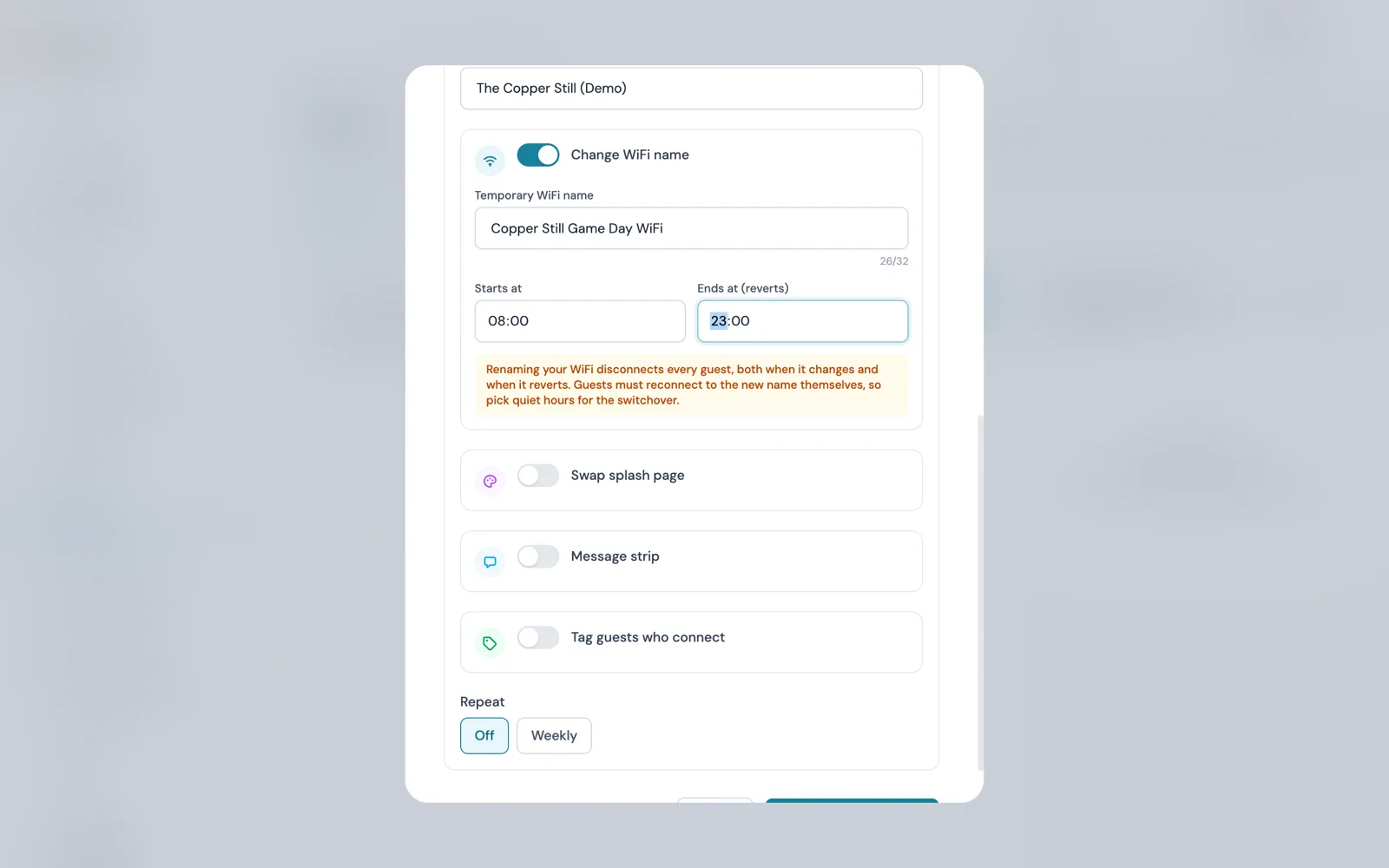
Swap splash page shows a different design from your design library for the window, then puts the default back. Build the match-day design ahead by duplicating your default or starting from a seasonal template, and Preview opens the real splash page in a new tab.
At full time the swap reverts to the design marked as your venue's default, whichever was live before it started, so check the default marker sits on the right design before the season begins. Splash changes apply to new connections only: a guest already online keeps their page until they reconnect.
Tag everyone who connects on a game day
Tag guests who connect turns a match day into a list. Give it a tag of up to 30 characters and a window, and every guest who connects inside that window has the tag added to their profile, first visit or fiftieth. It works on every venue and every sign-in route, because CaptiFi logs the guests itself, and when the window ends the tagging stops and everyone tagged keeps the tag.
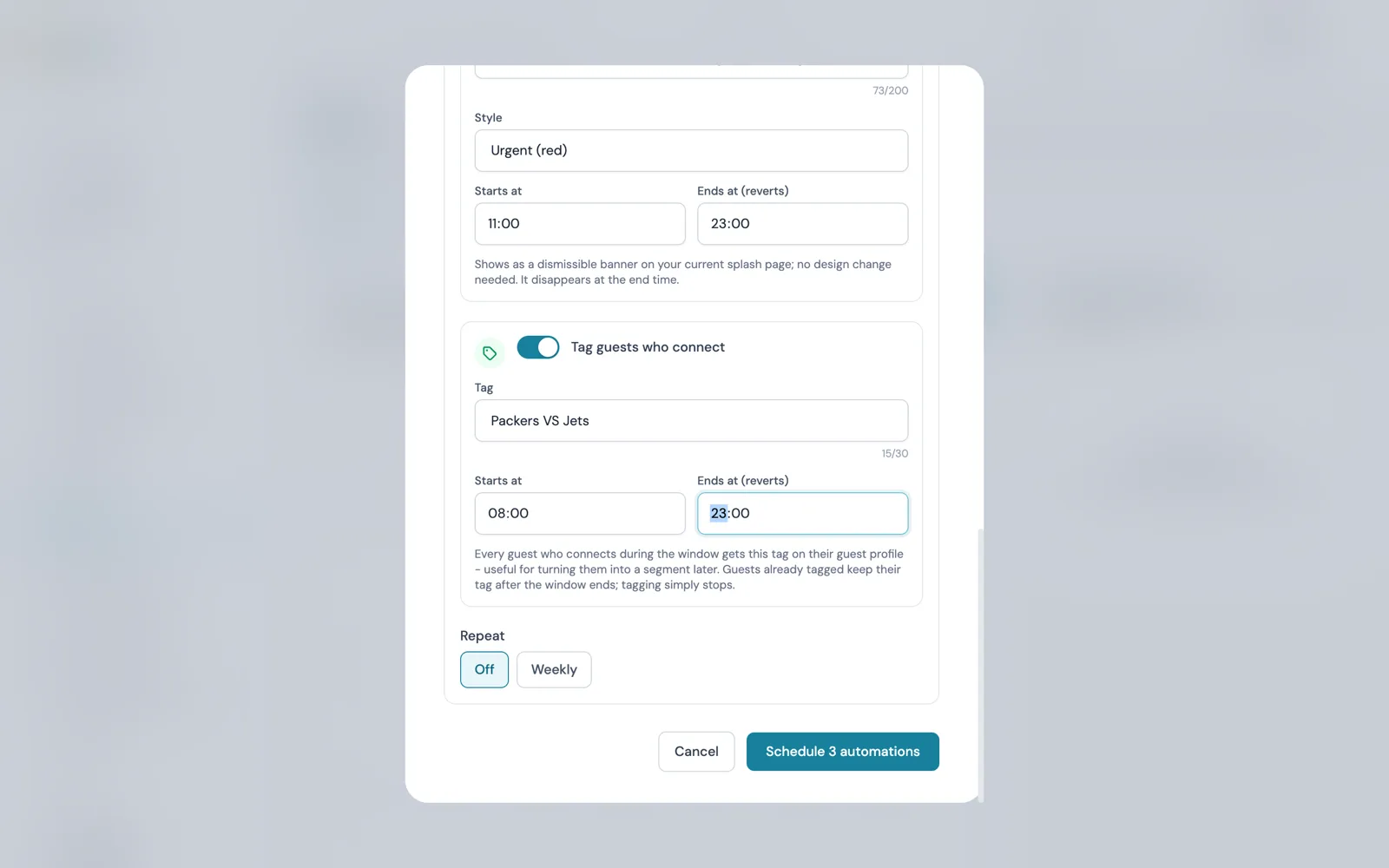
For a season, run two tags on each home game: a season tag, the same on every game, which builds one segment that grows with each fixture, and a per-fixture tag that records who came to which game. Overlapping tag windows on one venue trigger a warning first; confirm and save, because the overlap is intended.
To turn a tag into an audience, go to Marketing, then Audiences, then Segments, click New segment, choose the venue or venues, and add one condition: Guest tag contains the exact tag you used. The saved segment shows a live guest count and is selectable as the audience in the campaign wizard for both email and SMS. Matching is on the whole tag, so VIP never picks up a guest tagged MVP.
The three emails
The day before
The day-before email goes to the season segment, everyone tagged at an earlier home game. It needs only the kick-off time, when the doors open, whether tables can be held and how, and one thing to do. Send it from the campaign wizard with the segment as the audience, by email or SMS.
Half time
The half-time email is for the people in the room. On the Planner path the per-fixture tag window is running and guests who connected in the first half are already in that segment's count, so you send the offer to it from the campaign wizard when the whistle goes. On the Pro plan, Workflows does it for you: the Venue operations recipe tags guests who connect during a match and emails them about the match-day offer once, and a guest already tagged from an earlier match is left alone. Workflow emails skip guests who never opted in, unsubscribed, were erased or bounced.
Full time: the review ask
Review automation writes and sends the third email. By default it asks a guest to rate their visit 24 hours after they connect, adjustable in minutes, hours or days, by email and by text if you switch it on. A rating at or above your minimum, 4 stars by default, sends the guest to Google, Tripadvisor or Yelp; a lower rating opens a private feedback form that still shows the public links.
Set the delay in hours so the request lands the morning after full time. Each guest is asked at most once every 90 days per venue, so a regular who is in for every home game is asked at most once a quarter.
Which automations your hardware supports
Splash swaps, message strips and tagging work on every platform, because CaptiFi serves the splash page and logs the guests itself. Renaming the WiFi needs remote-rename support from your controller, which is the one place the hardware matters.
| Your WiFi hardware | Splash swap | Message strip | Tag guests | WiFi name change |
|---|---|---|---|---|
| CaptiFi plug-and-play device | Yes | Yes | Yes | Yes |
| UniFi (all connection types) | Yes | Yes | Yes | Yes |
| TP-Link Omada | Yes | Yes | Yes | Not yet |
| Cisco Meraki | Yes | Yes | Yes | Not yet |
| Ruckus | Yes | Yes | Yes | Not yet |
| Aruba Instant On | Yes | Yes | Yes | Not supported |
Where a name change is not available the toggle is disabled, with the reason behind the question mark, and the other three automations still run. CaptiFi is extending remote rename to more platforms over time.
Capacity and the no-table problem
The biggest fixtures create the one complaint marketing brings on itself: the email worked, the pub was full by kick-off, and late arrivals found nowhere to sit. Two tools already on the calendar help, and neither involves renaming the WiFi during a match.
The message strip is the quick one: a dismissible banner of up to 200 characters over whatever splash design is live, in one of four styles. Schedule it for the match window with a line about where the standing room is or when the kitchen stops taking orders, and it disappears for everyone at the end time.
Held tables are a job for Events and Ticketing. On the Growth plan and above, each venue gets a public events page, and an event can carry free RSVPs as well as paid tickets, with up to 12 ticket types, each with its own quantity, per-order limit and sales window. Create the game as an event, add a free RSVP type capped at the seats you are prepared to hold, and put the link in the day-before email. Free tickets carry no booking fee, each RSVP arrives as a QR code by email, door staff check people in from a phone, and every RSVP joins your guest list with a Bought a ticket marker.
Fixture-feed recipes that are coming
Everything above is scheduled against a date you type. The recipes for a WiFi that follows the fixture list itself are already built in Workflows, in a group called Fixtures, weather and holidays: Match day WiFi name from the fixtures renames the guest WiFi from an hour before your team kicks off until the match ends, Pre-match email sends a saved campaign three hours before kick-off, and Full-time offer shows a message across the splash page for two hours after the match. You pick your team from a list when you choose the recipe.
None of the three can be published yet. Since 28 September they show as not available in the recipe gallery, and the Fixture starts and Fixture ends triggers as not available when starting a workflow, until CaptiFi has connected a fixtures provider. They open the day a provider is connected, with nothing to change on your side.
Until then, the calendar version runs on the Pro plan. The Venue operations group has recipes that rename the guest WiFi for a match, swap the splash page or show a message across it, each starting from an event on the venue calendar and put back when the event ends or after a set number of hours.
Manual versus Planner versus Workflows over a 38-game season
A 38-game league season has 19 home games and as many away games on the screens. The table sets the three ways of running them against each other; Workflows is on the Pro plan and above.
| Over a season | By hand | Planner | Workflows (Pro plan) |
|---|---|---|---|
| Renaming the WiFi | Log in before the doors and again at full time, every game | One automation per home game, name restored at the end time | Calendar-event recipe today; fixture-feed version coming |
| Match-day splash page | Change it by hand, change it back by hand | Swapped for the window, default restored | Calendar-event recipe, put back when the event ends |
| Building the list | Add tags one profile at a time | Tag guests who connect, per fixture and per season | Add a tag step, once per guest |
| Match-day offer email | Sent by someone at half time | Campaign to the fixture's tag segment | Tag-and-email-once recipe, consent checked |
| Pre-match email | Sent by hand | Sent by hand to the season segment | Coming: saved campaign three hours before kick-off |
| Kick-off moved by a broadcaster | Someone has to be there at the new time | Edit the window before it starts | Coming: the fixture feed follows the new time |
| If something fails | Nobody is told | Alert email at once, 8am morning-of confirmation | Results view counts entered, sent and skipped per step |
Build the Planner calendar first; it is the calendar the Workflows recipes start from today. The pubs page covers the rest of what CaptiFi does for a pub, and the complete guide to pub WiFi marketing covers hardware, UK consent rules and the quiet nights between fixtures.
Sources: the CaptiFi Planner and WiFi Automations guide and the September 2026 What's New on docs.captifi.io; the CaptiFi release notes of 25 and 28 September 2026 for the Workflows recipe groups and the fixtures provider notice; and the CaptiFi feature pages for WiFi Automations, Workflows, Review Automation and Events and Ticketing. No capture rates or attendance figures are quoted; every number is a product limit or setting as documented on 29 September 2026.
Frequently asked questions
Quick answers to the most common questions about this topic.
What is match day pub marketing?
Can I rename my pub WiFi for a match automatically?
How do I email the fans who came to the last home game?
Does the match-day splash page go back by itself?
Which WiFi hardware supports the match-day automations?
Can CaptiFi follow the fixture list automatically?
How do I stop late arrivals finding no table on a big game?
When should the review request go out after a match?
The CaptiFi Editorial Team writes about guest WiFi marketing, captive portals, GDPR-compliant data capture, and local SEO for venue operators. We base our recommendations on real customer outcomes and verified third-party reviews from G2.com.
Ready to turn your guest WiFi into a marketing engine?
CaptiFi captures customer data from every WiFi login, automates Google reviews and email follow-ups, and plugs into the tools you already use. Hardware included (refundable deposit), transparent pricing, 30-day free trial.