Restaurant guest profile: spend per guest and lapsed regulars

Ask a bar manager who their regulars are and they will name a dozen people from memory. Ask the till and it lists whoever asked for an emailed receipt. Neither says who spent well in the spring and has not been in since. The guest profile on my.captifi.io answers that for one guest at a time.
Why a till alone cannot tell you who your regulars are
A point of sale is precise about money and vague about people. It holds an email on an order only where the guest gave one, at checkout, for a receipt or through online ordering, and most in-store orders carry none at all. A table of four pays on one card, so three of those people never existed as far as the POS is concerned, and the regular who closes a Friday tab on a card leaves nothing behind except a card token.
Guest WiFi captures from the other direction: every guest who joins your network passes one sign-in screen, whoever pays, and the consented email captured there is yours. On its own it knows who was in the building and how often, and nothing about spend. The guest profile is where the two records meet. See guest data capture for the capture side and the restaurants page for the rest.
The numbers on a guest profile and what each is built from
Every guest who signs in to your WiFi has a profile. Click a guest's name anywhere it appears, or go to My Venues, then Guest Visits, and search by name or email.
The header shows the name, email, phone and home venue. Up to four badges sit beside the name: a guest tier from New Guest through Returning, Regular and Frequent to VIP Guest; a reachability badge; a time-sensitive badge for a birthday within 14 days, a booking today or a low rating in the last 90 days; and Imported for an uploaded contact. Hover the tier badge to see the two biggest reasons behind it.
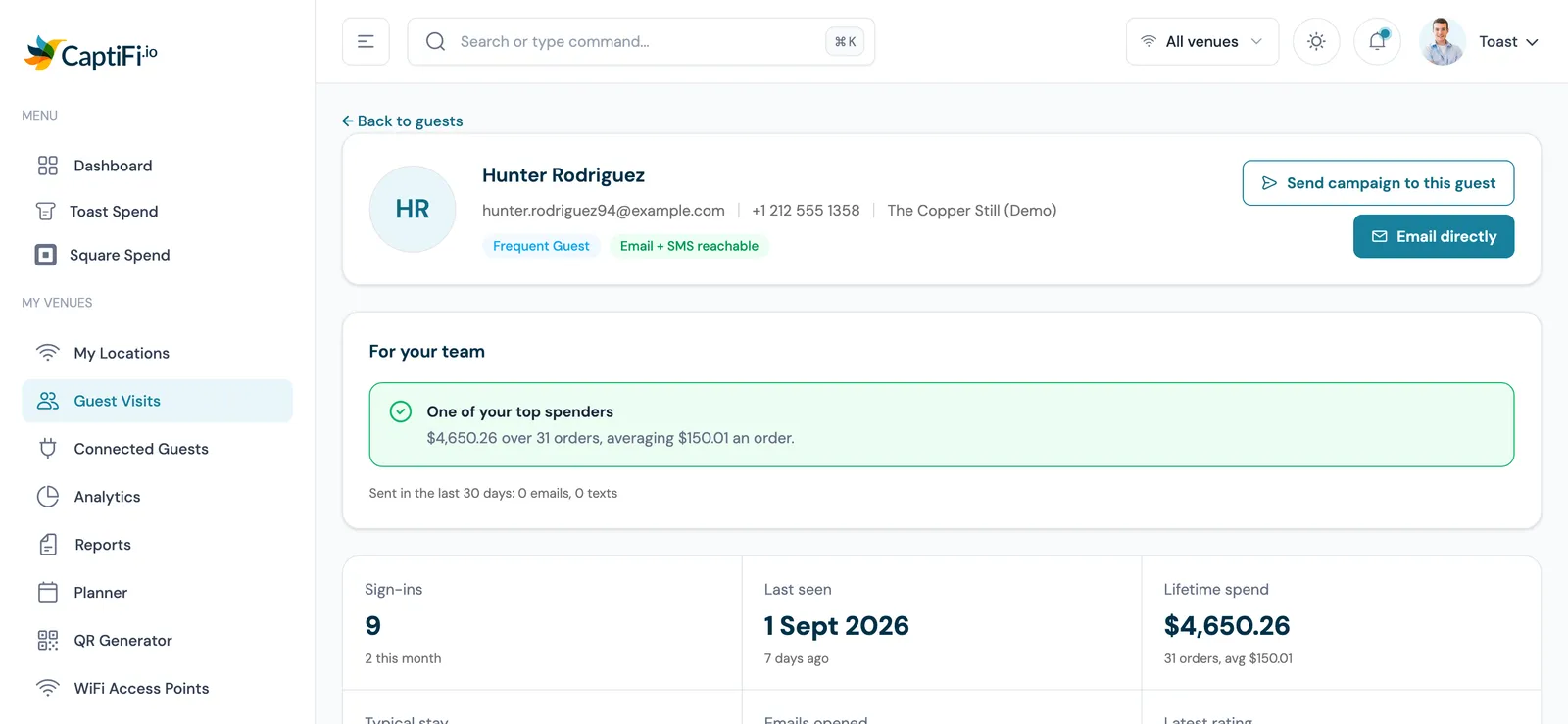
| Tile | Built from | When the data is missing |
|---|---|---|
| Sign-ins | Total WiFi sign-ins, with this month's count | Never connected for an imported contact |
| Last seen | Latest sign-in or session, plus their usual slot once a habit is clear | Slot left off until then |
| Lifetime spend | Total at the till across Toast and Square in your venue's currency, with order count and average order | Days as guest when no POS is connected |
| Typical stay | Median length of their WiFi sessions | This week's visits until three complete sessions |
| Emails opened | Opened of sent for marketing emails and automations | Percentage from three sends onwards |
| Latest rating | Latest review-request rating and its date | The reason no request has gone out |
Two figures answer "average spend per guest". On the profile, Average order is this guest's own number, total spent over order count. The venue-wide average spend per guest sits on the Spend dashboard for your point of sale: matched spend divided by matched guests, so it describes identified guests only, in your venue's currency. Venue-level reports are on the analytics dashboard page.
The For your team prompts and the exact rules behind them
Between the header and the tiles sits For your team: a short list of prompts in plain English, each derived from a stated rule over real data, with the numbers in the text so you can judge it yourself. The most urgent is highlighted at the top, and nothing here is a prediction: if the data does not support a prompt, it is not shown.
| Prompt | The rule behind it |
|---|---|
| Spender drifting away | A meaningful amount spent at the till, no order for 30 days or more |
| Regular gone quiet | At least three visits, nothing for 45 days or more |
| Regular not seen for months | The same guest once the gap passes 90 days |
| Overdue by their own rhythm | Usually back every week, not in for more than twice that |
| Big spender you cannot message | A top-tier spender with no marketing consent, worth asking next visit |
| Email address bounced | Messages cannot be delivered; ask for a fresh address |
| Left a low rating | Below your review-request threshold, with their feedback quoted |
| Birthday in N days | A registered birthday coming up |
| Has a regular slot, N weeks running, One of your top spenders, Went on to Google after rating you, Brand new guest | The positive prompts, each with its figure |
Spend at your venue: how an order is matched and why some regulars show nothing
The Spend at your venue card appears when the venue has Toast or Square connected, and every amount is in your venue's currency. It shows total spent, number of orders, average order and the date of the last order, then spend by month, then the ten most recent orders with date, venue, provider and total.
What they order lists the items in most of their orders, with how many orders each appeared in, once at least three orders carry line items, drawn from their most recent 50. A warning sits on the card if the point of sale has not synced in the last 30 minutes.
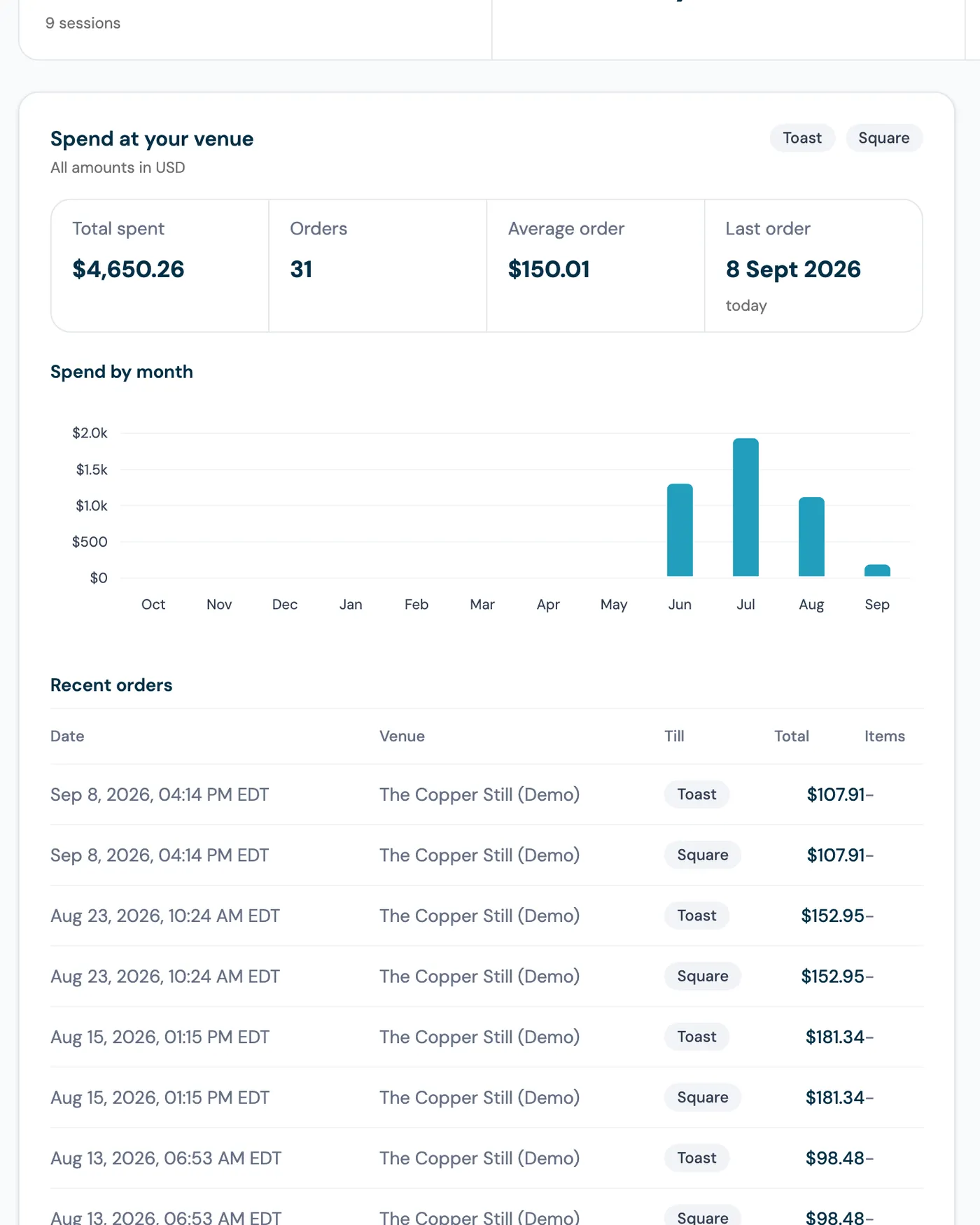
CaptiFi reads orders from the till every 15 minutes, read-only, and never edits an order, a price or a payment. Orders are matched to a guest by the receipt email they gave the till, or by the link CaptiFi made when the order synced (with Square, the customer record attached at the till). Orders sync from the moment you connect; historic sales are not back-filled. Setup is on the Toast POS and Square POS pages, and the Toast matching guide covers credentials and match rate.
This is why some regulars show nothing. A guest who never gives the till an email shows no spend even if they are in every week, and one who orders under a different email counts as a separate, anonymous customer. When nothing has matched yet the card says so in words, and the Spend dashboard shows the match rate so the gap stays visible. A single-digit match rate is common in the first weeks; it climbs as staff capture an email at the till.
Lapsed regulars: 45 days, 90 days and the guest's own rhythm
A lapsed regular is defined by sign-ins, so the prompt works with no point of sale connected. Regular gone quiet fires for a guest with at least three visits and nothing for 45 days or more. Past 90 days the same prompt reads Regular not seen for months.
The 45-day rule treats every regular the same, and a weekly regular has already missed six visits by the time it fires. Overdue by their own rhythm closes that gap: a guest who usually comes back every week has not been in for more than twice that. The figure it uses sits on the Visits and rhythm card as Usually back within, the average gap between visits.
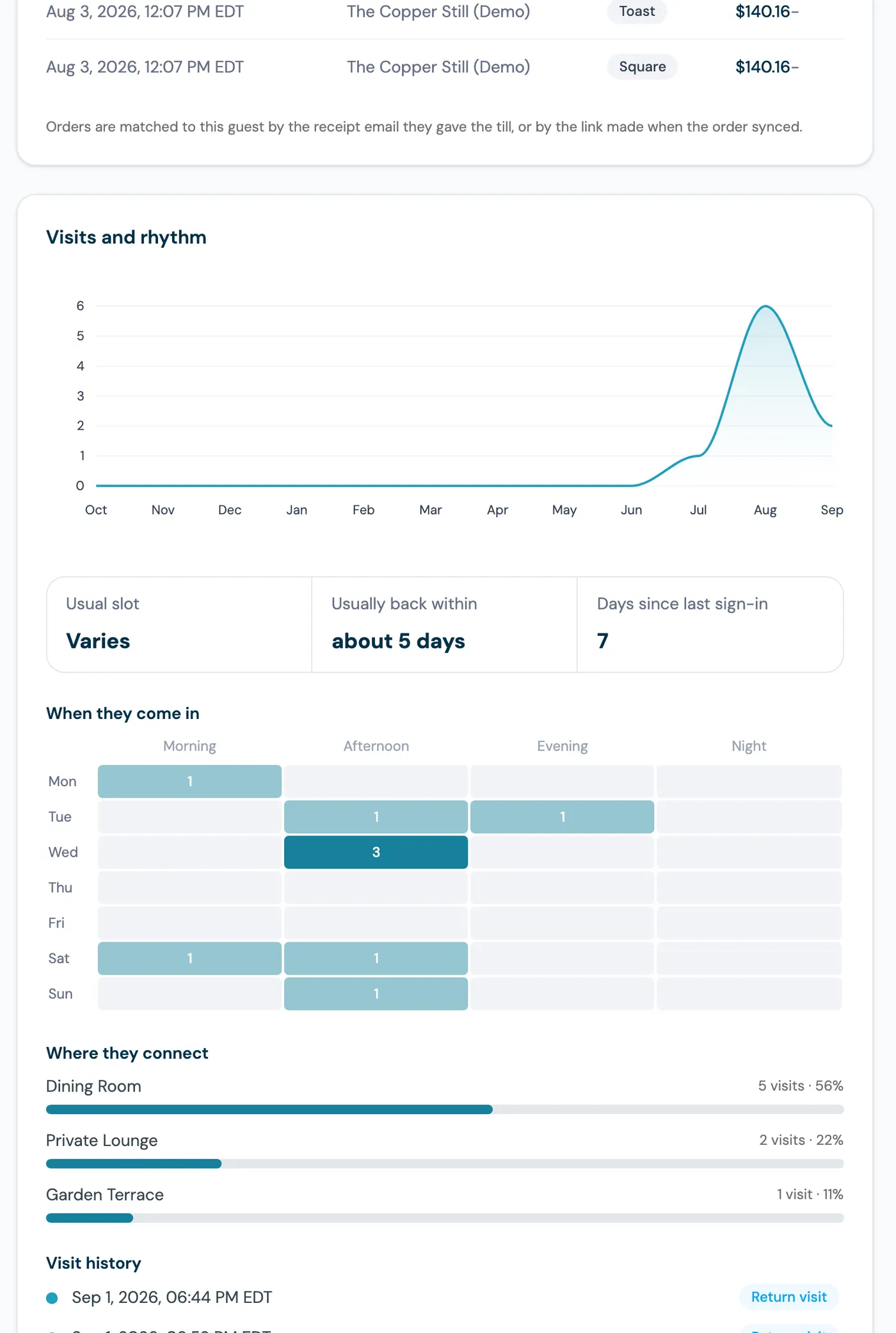
The rest of the card is context. It shows sign-ins per month for twelve months, a weekday-by-time-of-day grid, and Usual slot, claimed only after four visits with one slot holding at least 40 percent of them (otherwise Varies).
Spend adds a third test. Spender drifting away fires for a guest who has spent a meaningful amount at the till and has not ordered for 30 days or more. That can mean they have stopped coming, or that recent orders carried a different email, so read it next to the Sign-ins tile and the Last order date.
The big spender you cannot message, and how to ask next visit
The reachability badge says whether you can lawfully message this guest right now. Green means you can: Email + SMS reachable, Email reachable or SMS reachable. Grey means Unsubscribed or No marketing consent, which is the guest's right. Red means a message would not land: Email bounced, Marked as spam or Texts stopped.
Big spender you cannot message fires when a top-tier spender has no marketing consent. They join your WiFi and their orders match, and every win-back or VIP campaign skips them. The prompt's wording is the instruction: worth asking next visit.
The profile gives the floor team what they need for that conversation: Last seen and Usual slot say when to expect them, and What they order says what to lead with. The Contact and consent card shows the exact email and SMS states (Subscribed, Unsubscribed on a date or Not opted in; Opted in, Not opted in, Stopped or No phone), so nobody asks a guest who has unsubscribed to sign up again. When they do opt in, the change appears in the Activity timeline.
From prompt to action: a win-back segment and a workflow
The prompts are per guest; the campaign tools work on groups. For spend-based win-back, open the Spend dashboard for your point of sale, set a minimum spend, tick Lapsed only (no visit in 30 days) and click Email these guests. CaptiFi saves that list as an audience snapshot and takes you into the campaign flow.
The snapshot stays stable while you write. Spend, order count and average order are not fields in the general segment builder, and no automation reads till spend directly, so the snapshot or the CSV export is the spend route; at a venue running a Rewards programme, matched orders earn points and a points-reached automation can fire on the balance.
For the visit side, the workflow builder runs on WiFi events: a welcome email after first login, a review request 24 hours after a visit, and a win-back campaign for guests who have not returned. That is the automated counterpart of Regular gone quiet, and it needs no point of sale. For one guest who deserves one message, the Send campaign and Email directly buttons at the top of the profile do the job.
Privacy: consent flags, team permissions and erasure
Consent is visible in three places: the reachability badge, the Contact and consent card, and the Activity timeline where consent changes are recorded. The card also shows how they signed in (Google, Apple or email), and whether they were captured on your WiFi or imported. Where a connector pushes contacts outward, as Square does into your Customer Directory, only opted-in guests are sent.
A team member with limited access sees the same layout with personal data withheld: email and phone masked, order line items, review feedback text and other addresses hidden, and no Notes and tags card. Spend totals, visit counts and the prompts still show, because none of those identify the guest.
When you delete or anonymise a guest under GDPR, the sweep covers their linked return visits and records at your venues sharing the same phone number, including guests who signed in with a phone and no email; anonymisation also clears the phone number and SMS consent. The confirmation dialog describes exactly what will be removed. Disconnecting Square removes its credentials from CaptiFi at once, and spend already synced stays.
WiFi only, POS only, both linked
| Question | Guest WiFi only | Point of sale only | Both linked on the profile |
|---|---|---|---|
| Who was in the building? | Everyone who signed in, ordered or not | Guests who gave an email at checkout or online | Every sign-in, with matched orders attached |
| How often do they come? | Sign-ins, usual slot, usual gap, weeks running | Order dates, for guests it can identify | Visit rhythm and order dates on one timeline |
| What did they spend? | Not known | Known for identified customers | Total, average order, last order and most-ordered items on the profile |
| Who has lapsed? | Regular gone quiet (45 days), not seen for months (90 days), overdue by their own rhythm | Depends on what the till holds | Those three, plus Spender drifting away (30 days) and a lapsed high spender list to email |
| Can I reach them? | Reachability badge from sign-in consent | Only where the till holds consent | Reachability badge, plus Big spender you cannot message |
| Who never appears? | Guests who did not join the WiFi | Card payers with no email, and companions who did not pay | A regular who never gives the till an email shows visits and no spend |
If you already run guest WiFi, the profile and its visit-based prompts are live now. The spend card, the Lifetime spend tile and the two spend prompts switch on when you connect Toast or Square, and orders sync from that moment, so connect before the weekend you want to measure.
Sources: the CaptiFi customer guides The Guest Profile, Toast POS setup and Square POS setup at docs.captifi.io; the September 2026 What's New entries on the guest profile and guest erasure; and the CaptiFi Toast POS and Square POS integration pages. Screenshots show a demo venue on my.captifi.io with seeded data. Thresholds and sync intervals were correct at the time of writing, September 2026.
Frequently asked questions
Quick answers to the most common questions about this topic.
What is on a restaurant customer profile in CaptiFi?
How is spend per guest calculated on the profile?
How do I identify lapsed regulars at a restaurant or bar?
Why does a regular show no spend on their profile?
What does Big spender you cannot message mean?
Can I build a campaign or automation from spend on the profile?
What does a team member with limited access see on a guest profile?
Which currency does the guest profile use?
The CaptiFi Editorial Team writes about guest WiFi marketing, captive portals, GDPR-compliant data capture, and local SEO for venue operators. We base our recommendations on real customer outcomes and verified third-party reviews from G2.com.
Ready to turn your guest WiFi into a marketing engine?
CaptiFi captures customer data from every WiFi login, automates Google reviews and email follow-ups, and plugs into the tools you already use. Hardware included (refundable deposit), transparent pricing, 30-day free trial.