Seasonal WiFi Automations: Schedule Splash Page Changes

Every venue has the same seasonal jobs on the guest WiFi: rename the network for Halloween, put a Christmas design on the splash page, and do something useful with the January crowd. Each takes minutes in the dashboard, but those minutes fall on the busiest days of the year, and the undo falls on days when nobody is thinking about WiFi.
The Planner, under My Venues on my.captifi.io, turns those jobs into scheduled automations with a start time and a required end time. Every product detail below comes from the Planner guide.
Why seasonal changes never happen
A seasonal splash page is easy to build and hard to run. Somebody has to activate it on the right morning and put the normal page back afterwards, and the second job has no deadline. So the Halloween design is still up in mid November, or the festival network name is still broadcasting in March.
The Planner removes the remembering. An automation is attached to a calendar event, applies at its start time and puts everything back at its end time, in the venue's own timezone. The end time is required, so you never schedule the undo.
On days with something scheduled, the account owner gets an email at 8am venue time listing what will run, and an immediate alert if anything fails to apply or revert. The WiFi automations page has the feature summary.
The four automations and what each looks like to a guest
You can switch on any combination of the four for one event, each with its own switch and window. Three run on every venue, because CaptiFi serves the splash page and logs the guests itself; the WiFi name change needs a controller that can rename a network remotely.
| Automation | What you set | What the guest sees | Works on |
|---|---|---|---|
| Change WiFi name | A name, up to 32 characters | A different network name. Connected devices are dropped and guests sign in again | CaptiFi device or UniFi |
| Swap splash page | Any design from the venue's design library | The chosen design on their next connection; a guest already online keeps their session | Every venue |
| Message strip | Up to 200 characters, in one of four styles | A short dismissible banner on top of whichever design is live | Every venue |
| Tag guests who connect | A tag, up to 30 characters | Nothing; the tag lands on their profile, first visit or fiftieth | Every venue |
The message strip needs no design work, because it sits on top of whichever splash page is live. Banner uses your brand colours, Success is green, Warning is amber and Urgent is red. A designed image that stays up until you change it is a promotion, a separate feature.
For the splash swap, the picker marks the live design as Live now, and Preview opens the real splash page in a new tab. Build the seasonal design ahead of time by duplicating your default, or start from one of the five seasonal templates: Christmas, Halloween, Match Day, Valentine's and New Year. A template applies its own colours and copy and carries over your venue's logo, background image and name. Our guide to splash page design covers what to keep when you restyle a page.
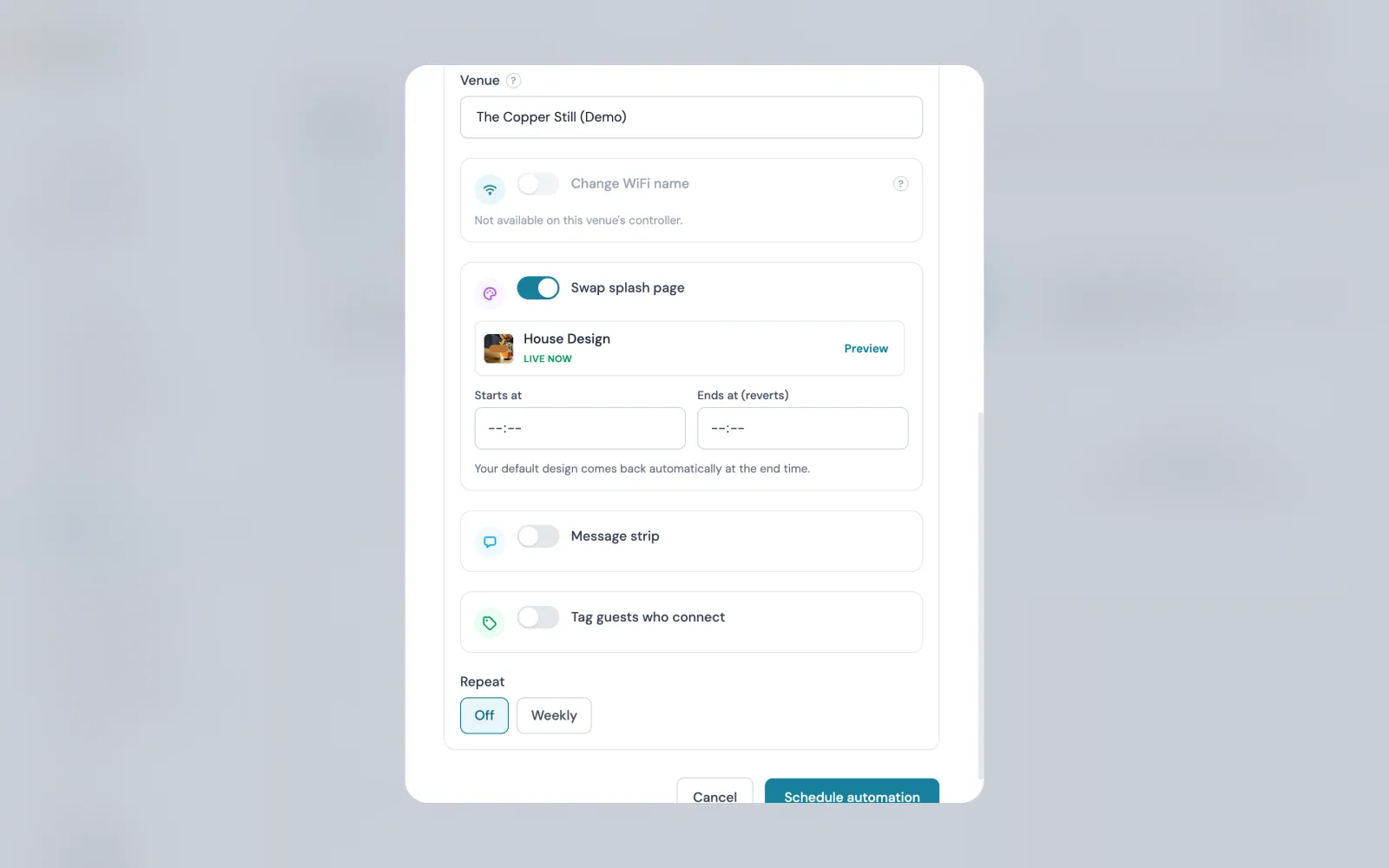
Plan the event, pick the venue, set the window
Click any day on the Planner calendar, or the Plan an event button, and fill in the event: a title such as "Halloween", the date, a type (Marketing, Promotion, Holiday or Note, which only affects the label), a colour and any notes. Then scroll down to WiFi automation and choose the venue. Automations target a single venue; if an event covers several, save it and schedule it again for each.
Every time you enter is the venue's own local clock, and each automation needs a Starts at and an Ends at (reverts) time. Keep a WiFi name change in quiet hours: renaming drops every connected device, phones do not rejoin a renamed network on their own, and on UniFi the change briefly re-provisions the access points. Start before opening and end after closing.
The save button counts what you switched on, and nothing changes until each start time arrives. The day then carries a badge per automation, and the card beside the calendar lists everything queued with a countdown.
Weekly repeats for a season
A one-day event leaves Repeat on Off. A season needs Weekly: pick the days of the week and, optionally, a Repeat until date. Leave it empty and the series runs until you stop it.
This is how a Christmas splash covers December without an event for every day. Choose all seven days, set the window to your trading hours and set Repeat until to 24 December. Each week is its own entry in the Scheduled automations list, so you can cancel one week without touching the rest, and times stay fixed to the venue's local clock across a daylight saving change. The weekly rule cannot be edited after saving; cancel the series and schedule it again.
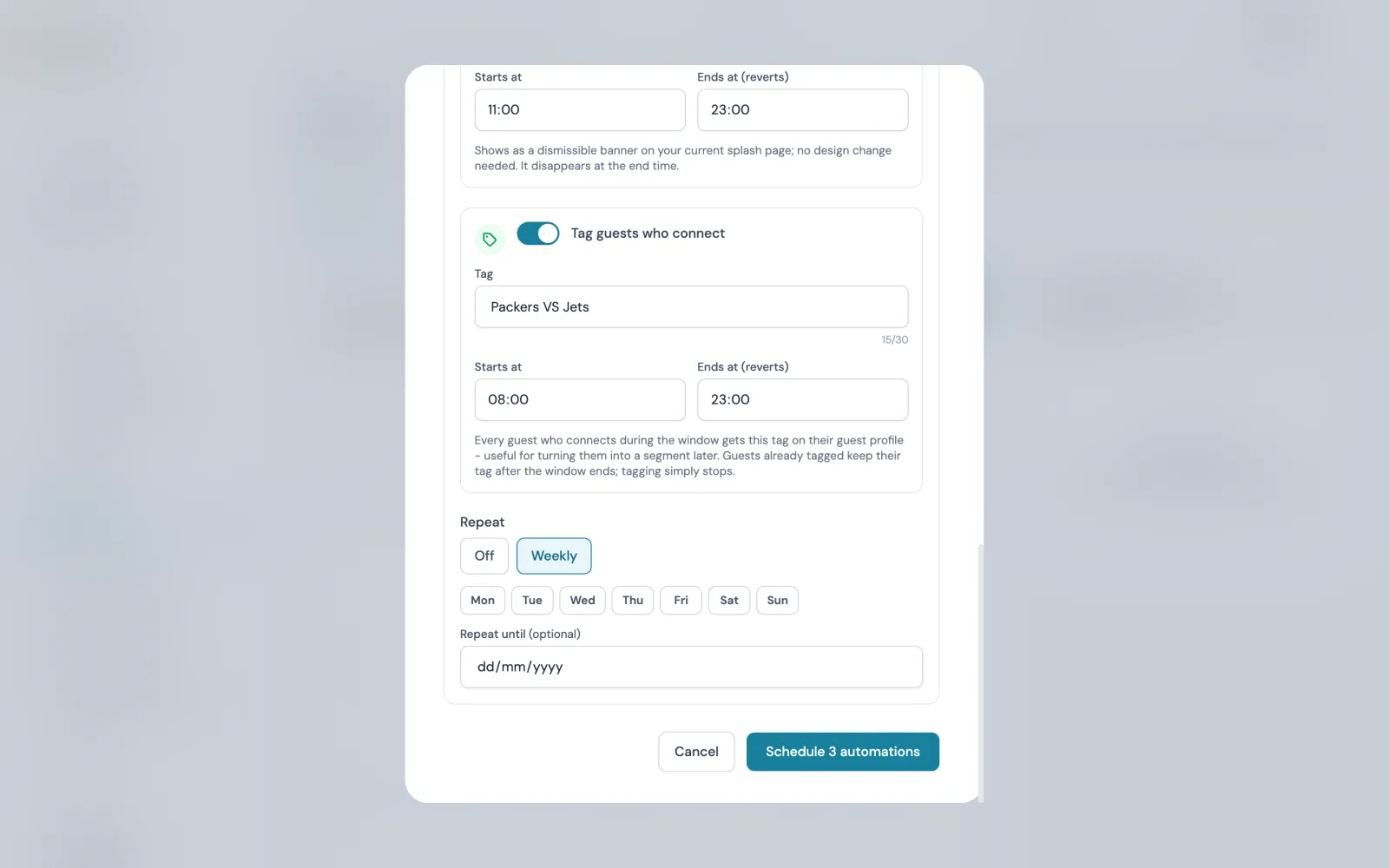
Automatic revert and overlapping windows
At the end time the original WiFi name is restored, the venue's default splash design goes live again, the banner is removed, and tagging stops. Guests already tagged keep their tag, so the list is still there next year. A splash swap reverts to the design marked as the venue's default, regardless of which design was live when it began, so check the default marker before you queue the Christmas swap.
Overlaps are handled by type. Two WiFi name changes can never overlap on one venue; the Planner blocks the save, because there would be no way to know which name to restore. Overlapping splash swaps, message strips or tag windows trigger a warning you can confirm when the overlap is deliberate, for example tagging both "Christmas 2026" and "Office party" over the same evening.
Which automations your hardware supports
Splash swaps, message strips and tagging work on every platform CaptiFi supports. WiFi name changes depend on the controller exposing a remote rename, which is why that toggle is greyed out on some venues.
| Your WiFi hardware | Splash swap | Message strip | Tag guests | WiFi name change |
|---|---|---|---|---|
| CaptiFi plug-and-play device | Yes | Yes | Yes | Yes |
| UniFi (all connection types) | Yes | Yes | Yes | Yes |
| TP-Link Omada | Yes | Yes | Yes | Not yet |
| Cisco Meraki | Yes | Yes | Yes | Not yet |
| Ruckus | Yes | Yes | Yes | Not yet |
| Aruba Instant On | Yes | Yes | Yes | Not supported |
Where the rename is marked Not yet, the other three still run, and a message strip puts the seasonal line in front of guests without disconnecting anyone. Support is being extended over time.
Editing a scheduled automation without rebuilding it
Open the Scheduled automations tab for the per-venue list. Upcoming shows what each queued automation will do, its window, who scheduled it and a countdown, with Edit and Cancel on every row. Edit works on anything not yet started and covers the window and the automation's own field: the WiFi name, the design, the message and its style, or the tag.
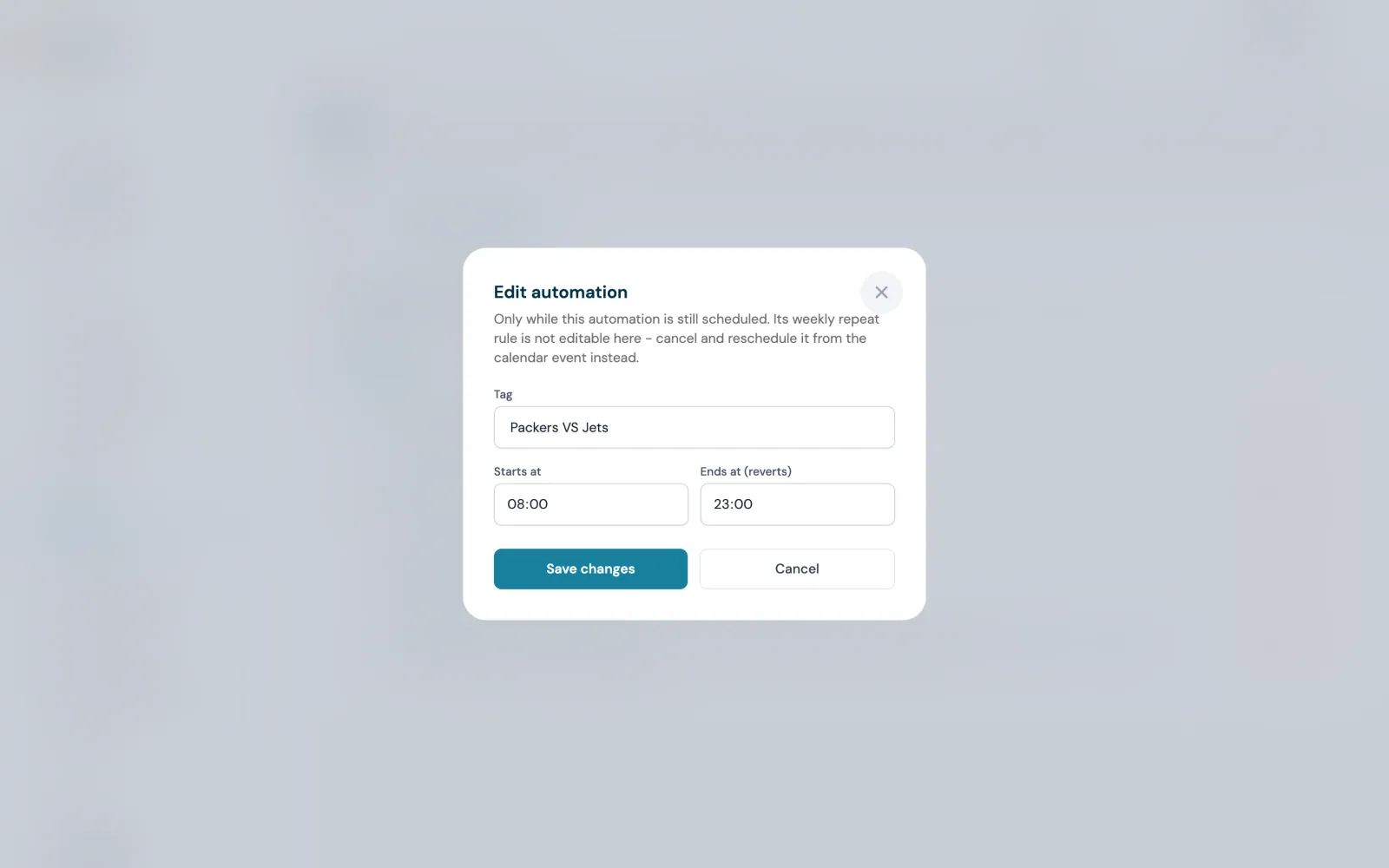
Once an automation is running or finished, the Edit button disappears and you use Stop now or Cancel instead. Cancel arms itself on the first click and needs a Confirm cancel on the second, so a stray click never removes anything. Creating, editing or cancelling automations needs the Manage splash pages permission from Team Members, and automations belong to the venue, so everyone with access to it sees them with the creator's name on each row.
Using the guests a tag collected
A tag is worth adding only if you act on it later, and the path has three stops. First, the tag lands on the guest profile: open My Venues, then Guest Visits, click any guest who connected during the window, and the tag sits in the Tags card beside your private owner notes.
Second, turn the tag into an audience. Under Marketing, open Audiences, then Segments, click New segment, name it (say "Christmas 2026 crowd"), choose the venue or venues, and add one condition: field Guest tag, operator contains, value the exact tag. Guest tag matches the whole tag exactly, including capitals and spaces, so "VIP" never picks up a guest tagged "MVP".
Third, the saved segment shows a live guest count and is selectable as the audience in the campaign wizard for email and SMS. So the season's loop is: tag everyone who connects in December, then email that exact crowd in January. The Christmas WiFi marketing guide has a calendar for the sends, and the journey one guest follows after signing in is drawn in the workflow builder.
A three-month template from October to January
The whole plan fits in one sitting at the end of September. The windows are suggestions: use your own trading hours, and keep every WiFi name change outside them. Make the Halloween, Christmas and New Year designs first from the seasonal templates.
| When | Event | Automations to switch on | What reverts |
|---|---|---|---|
| 31 October (a Saturday this year) | Halloween | Change WiFi name, before opening to after close. Swap to the Halloween design. Tag "Halloween 2026" | Name and default design at the end time; tagged guests keep the tag |
| Late November to 24 December | Christmas season | Swap to the Christmas design, Repeat Weekly on all seven days over trading hours, until 24 December. Tag "Christmas 2026" and a Banner-style message strip for party bookings on the same series | Default design and no banner at each day's end time; series stops after 24 December |
| 31 December | New Year's Eve | Swap to the New Year design. Message strip, Urgent style, for last entry details. Tag "NYE 2026" | Default design, banner removed |
| 1 to 31 January | January | Tag "January 2027", Repeat Weekly on all seven days, until 31 January. Message strip, Success style, for the January offer | Tagging stops after 31 January; tagged guests keep the tag |
| Mid January | Win-back send | A campaign to the segment Guest tag contains "Christmas 2026" | Nothing |
Two checks before you save the first event: confirm the right design is set as the venue's default, since every splash swap reverts to it, and confirm the hardware supports a WiFi name change if Halloween depends on one. The branded splash pages page covers the builder, and there is a 30-day free trial.
Sources: CaptiFi customer documentation, Planner and WiFi Automations (docs.captifi.io/dashboard/planner), Splash Page Builder (docs.captifi.io/dashboard/splash-page) and What's New, September 2026; the CaptiFi WiFi Automations feature page. Hardware support is as listed in the Planner guide on 29 September 2026 and is being extended over time.
Frequently asked questions
Quick answers to the most common questions about this topic.
Can I schedule a splash page change in advance?
Does a seasonal splash page revert automatically?
Can I change my WiFi name for an event and have it change back?
Which WiFi hardware supports scheduled WiFi name changes?
What is a WiFi message banner, and how long does it stay up?
Can a Planner automation repeat every week for a whole season?
Can I edit a scheduled automation without rebuilding the event?
How do I email the guests who connected during a seasonal window?
The CaptiFi Editorial Team writes about guest WiFi marketing, captive portals, GDPR-compliant data capture, and local SEO for venue operators. We base our recommendations on real customer outcomes and verified third-party reviews from G2.com.
Ready to turn your guest WiFi into a marketing engine?
CaptiFi captures customer data from every WiFi login, automates Google reviews and email follow-ups, and plugs into the tools you already use. Hardware included (refundable deposit), transparent pricing, 30-day free trial.