Toast POS and Guest WiFi: See What Your WiFi Guests Spend
Toast is the point of sale a great many American restaurants and bars run on, and it is very good at the moment of payment. Every check, item, modifier, tip and payment is recorded by location and by day. What it cannot see is most of the room. A table of four pays on one card, and three of those people never existed as far as the POS is concerned. A regular closes a tab every Friday and leaves nothing behind except a card token. Toast has an email on an order only when someone gave one, at checkout, for a receipt or through online ordering, and at a busy bar that is a small minority of orders.
This guide is about closing that gap with guest WiFi, and specifically about how the CaptiFi Toast POS integration does it: what it reads, how it matches, what the dashboard shows, and what a realistic match rate looks like in the first month. It is written for US operators, because that is where most Toast venues are, and the mechanics are the same anywhere Toast runs.
The gap a point of sale leaves on its own
A point of sale answers "what sold". For the majority of guests, who paid with a card and gave no details, it does not answer "who was here" or "how do I reach them again". The marketing list it produces is built from the fraction of guests who ordered online or asked for an email receipt, which skews towards delivery customers and away from the people sitting in your dining room.
Guest WiFi captures from the other direction. Everyone who joins your network passes through one sign-in screen, whether or not they order and whoever pays the check. A branded splash page asks for an email and a marketing opt-in, and that contact is yours. Across the CaptiFi platform, venues typically capture 40 to 60 percent of connecting guests and build lists of 400 to 1,200 emails a month. Those are vendor-reported ranges. A bar with a young crowd and strong cellular coverage will sit lower than a hotel restaurant. Our guide to guest data capture covers what moves that number.
How the matching works
CaptiFi connects to Toast with API credentials issued for your restaurant: a client ID, a client secret and the restaurant GUID that identifies the location. Every 15 minutes it reads the orders modified in the last 60 minutes (a deliberate overlap, so a delayed run cannot drop anything) and stores the order total, the time it opened, the items on the check and the customer details Toast recorded (email, name and phone) where there are any. A tab that closes later comes back in a later window and its total is refreshed.
Matching is by email address alone. If the email on a Toast order equals the email a guest typed on your splash page at that venue, the order is linked to that guest. There is no phone number fallback and no fuzzy name matching, because a wrong match is worse than a missing one: it would put another person's spend on a guest's profile. An order with no email, or with a different email from the one used on the WiFi, stays unmatched and is counted as anonymous revenue.
Access is read-only. CaptiFi never writes to Toast, never edits an order, price, menu item or payment, and does not touch your Toast loyalty or online ordering. If you switch the integration off, nothing in Toast changes.
What the Toast Spend dashboard shows
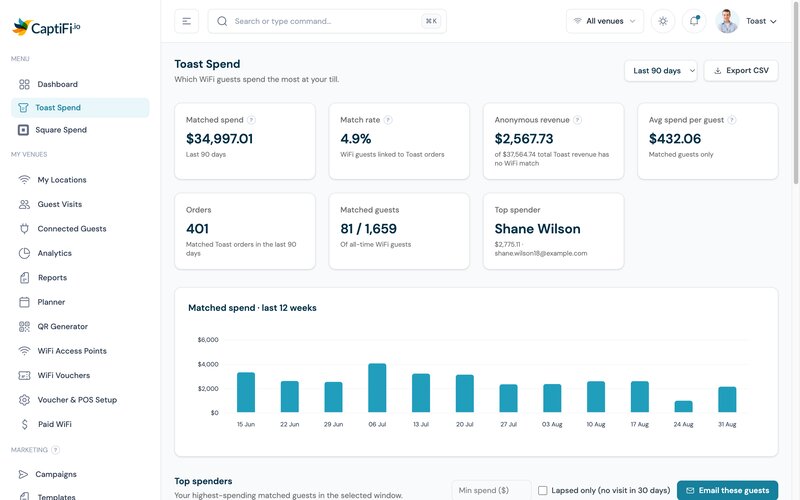
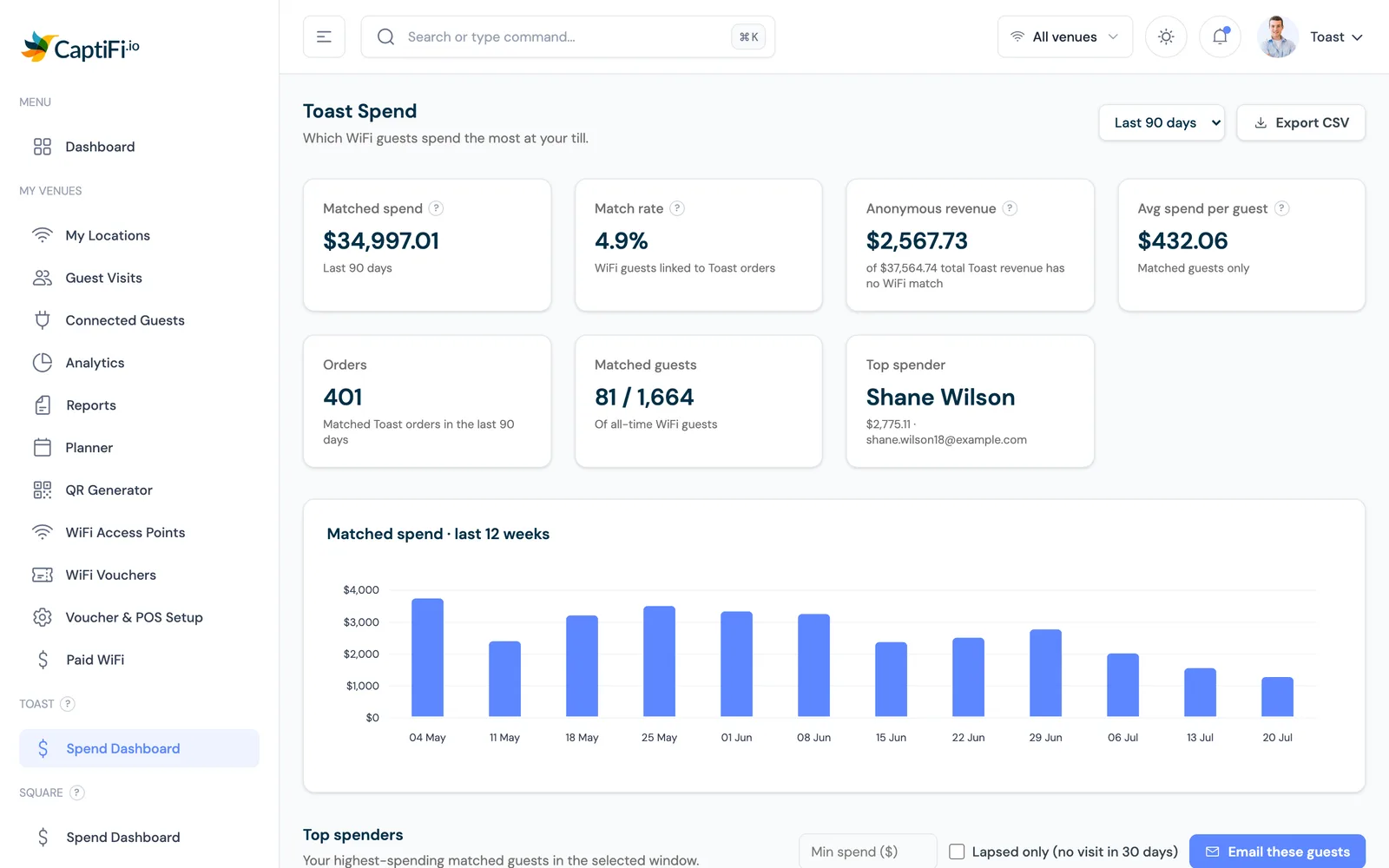
Once a venue is connected, Toast Spend appears in the sidebar of my.captifi.io. Pick the last 30, 60 or 90 days at the top right (the default is 90) and every figure recalculates for it:
| Figure | What it tells you |
|---|---|
| Matched spend | Total value of the Toast orders CaptiFi linked to a WiFi guest in the window |
| Match rate | The share of your WiFi guests with at least one linked Toast order |
| Anonymous revenue | Toast revenue with no WiFi match, shown against total revenue so the gap is visible |
| Average spend per guest | Matched spend divided by matched guests, so it describes identified guests only |
| Orders | Matched Toast orders in the window |
| Matched guests | Guests with a linked order, against your all-time WiFi guest count |
| Top spender | Your highest-spending customer in the window and their total |
| Matched spend, last 12 weeks | A weekly bar chart, so a quiet fortnight shows before the quarter ends |
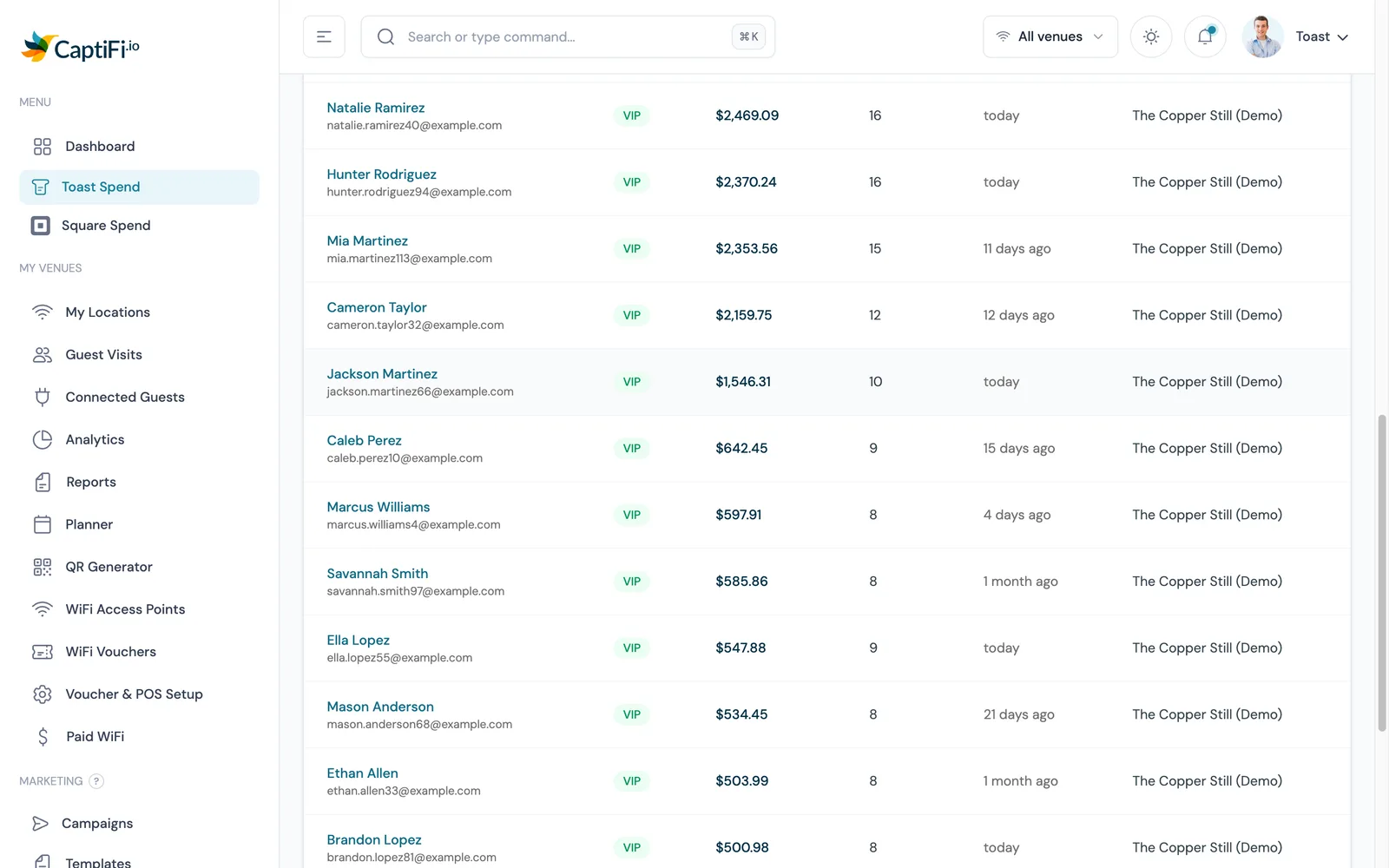
Below the chart, the top spenders table ranks customers by spend in the window, with order count, last visit and venue. A Toast customer whose receipt email has never signed in to your WiFi appears under their Toast name without a profile link. Open any matched guest in Guest Visits and the Toast data sits beside their visit history: total spent, average order, last order, the items they order most and each recent order. A server looking up a name sees both how often that guest comes in and what they are worth. Export CSV, at the top right, downloads the table and its spend figures for the window.
VIP, Regular and Casual
Every customer on the table carries a spend tier, calculated on their spend in the window you have selected (30, 60 or 90 days), in your venue's currency:
| Tier | Spend in the window | Who they tend to be |
|---|---|---|
| VIP | 200 or more | The regulars who spend the most. The first people to hear about a tasting menu, a members' night or a new opening. |
| Regular | 50 up to 200 | Guests who come back and spend steadily. The group a mid-week offer or a loyalty push moves most. |
| Casual | Under 50 | One-off and light spenders, the group a welcome-back email suits. |
The thresholds are fixed amounts, so a bigger spender walking in never pushes anyone down a tier, and a regular who goes quiet for a season drops down as the window rolls. In practice the VIP list at a neighbourhood bar is a few dozen people who are there most weeks, and the Casual list is everyone who came once for a birthday. The spend total, without the tier, also appears on each matched guest's profile, which is where a manager checking a reservation name will see it.
Winning back lapsed high spenders
The lapsed high spender list is the most direct use of the spend data. Above the top spenders table there is a minimum spend box, a "Lapsed only (no visit in 30 days)" checkbox and an Email these guests button. Set the threshold (say 150), tick lapsed only, and the table becomes the list of people who used to spend well with you and have not ordered in a month.
Click Email these guests and CaptiFi saves that exact list of matched guests as an audience snapshot, then offers a Create campaign link for it. The snapshot does not move while you write, so the campaign goes to the people you filtered and to nobody who happens to qualify by the time you press send. Give them a reason to come back: a new menu, or a table held for them on a quiet Tuesday. The email campaign tools handle the sending, the unsubscribe link and the reporting.
Spend, order count and average order value are not fields in the general segment builder, and no automation reads Toast spend directly (at a venue running a Rewards programme, matched orders earn points and a points-reached automation can fire on the balance). The snapshot from the dashboard, or the CSV export, is the route for spend-based campaigns.
What a realistic match rate looks like
Expect a low number at first, and do not read it as a fault. Match rate counts the WiFi guests who have at least one linked Toast order, and a link needs two things to line up: the guest signed in to the WiFi with an email, and the same email was attached to an order. Most in-store orders carry no email at all, and some of the ones that do carry a relay address from a delivery marketplace that can never match a person in your dining room. A rate in the single digits is common in the first weeks.
Two things move it. The first is asking for the email at the register: a receipt prompt or a loyalty sign-up on the Toast side attaches an address to the order, and if the guest uses the same one on your WiFi, it matches. The second is time. Regulars sign in once and are recognised on every return, so the share of orders that can be matched climbs as the WiFi list ages and the same people keep ordering. The anonymous revenue figure on the dashboard shows the size of the unmatched remainder at any point, so you are never guessing at what the matched figure leaves out.
Two other consequences follow from email-only matching. Cash sales with no email never match, so a cash-heavy bar will see a lower rate than a restaurant that emails receipts. And matched spend is a floor for what your WiFi guests spend, never the whole figure, because the same guests also place the orders that carry no email.
Connecting Toast to CaptiFi
- Ask Toast for API credentials. Toast issues the credentials for your restaurant. Ask Toast support or your account manager for API access for a third-party integration with read access to orders, and note the client ID, client secret and restaurant GUID. The secret is shown once.
- Paste them into CaptiFi. In my.captifi.io open Integrations, click Configure on the Toast POS card, enter the three values for the venue and leave the environment on production unless Toast told you to test in sandbox. The secret is stored write-only, so CaptiFi only ever shows a masked confirmation.
- Switch the venue on. The card reads Connected, and Toast Spend appears in the sidebar after the first successful sync. The first matched orders normally show within 30 minutes, and the feed starts about an hour before the moment you connected, so connect it before the weekend you want to measure.
- Repeat per location. A restaurant GUID identifies one location, so a group connects each restaurant separately. The venue selector then shows one location or all of them, and switching one venue off leaves the others running.
The full walkthrough with screenshots is in the Toast setup guide. The WiFi side is independent of Toast: CaptiFi runs on its own plug-in device or on the UniFi, Meraki, Aruba, Omada, Cisco, Ruckus, MikroTik or Fortinet FortiGate-managed access points you already have, and the match works the same on all of them.
Toast alone, and Toast with guest WiFi
| Question | Toast on its own | Toast with CaptiFi guest WiFi |
|---|---|---|
| Who was in the venue? | The guests who gave an email at checkout, for a receipt or online | Every guest who joined the WiFi and opted in, whether or not they ordered |
| What did a named guest spend? | Known where the guest gave an email | Known for matched guests, with last order and most-ordered items on the profile and a tier on the Toast Spend table |
| Who has stopped coming in? | Depends on what Toast holds for that guest | Filter to lapsed high spenders (no order in 30 days), save them as an audience in one click and email them |
| What is written to the POS? | Everything, it is the POS | Nothing: CaptiFi reads orders and never writes back |
| How current is the data? | Live | Refreshed every 15 minutes |
Consent and email rules in the US
The splash page keeps two things apart: joining the WiFi, and agreeing to marketing. The marketing box is unticked by default, the privacy notice is linked, and the consent state is stored with the guest record and carried into every export. In the US, the CAN-SPAM Act then governs the emails you send: an honest subject line, a working unsubscribe that is honoured within ten business days, and your physical mailing address in the message. CaptiFi adds the unsubscribe link and one-click unsubscribe headers to every send; the postal address is yours to put in the template. If you also send SMS, the TCPA requires prior express written consent for marketing texts, so collect that consent explicitly before you text anyone. State privacy laws such as California's CCPA add notice and deletion rights for their residents. None of this is legal advice; it is the standard set-up, and the same portal serves UK GDPR venues with the same mechanics.
Getting started
The Toast POS integration is included on the Growth plan and above with no per-integration fee, and the 30-day free trial runs at Growth level, so you can connect Toast on day one and see matched orders before you pay anything. Growth is $129 a month on the pricing page, shown in your currency. If you run Square at another location, the Square POS integration gives the same spend view, and the restaurants page covers the rest of what CaptiFi does for a US venue: Google review requests and the email campaigns that run off the guest list. Start the free trial and read the match rate after your first busy weekend.
Frequently asked questions
Quick answers to the most common questions about this topic.
Why connect Toast POS to guest WiFi?
How does CaptiFi match Toast orders to WiFi guests?
Is the CaptiFi Toast integration native or does it use Zapier?
Why is the match rate low at first?
Does CaptiFi write anything to Toast?
What can I do with the spend data?
What does the Toast integration cost?
Does it import my past Toast orders?
The CaptiFi Editorial Team writes about guest WiFi marketing, captive portals, GDPR-compliant data capture, and local SEO for venue operators. We base our recommendations on real customer outcomes and verified third-party reviews from G2.com.
Ready to turn your guest WiFi into a marketing engine?
CaptiFi captures customer data from every WiFi login, automates Google reviews and email follow-ups, and plugs into the tools you already use. Hardware included (refundable deposit), transparent pricing, 30-day free trial.